
Double checking your system after recovering from a corrupted Microsoft OS
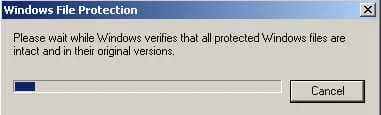
Disasters happen and with a bit of skill and some luck, you might be able to get back into your operating system. But you might notice a bunch of things out of place or missing if you had to do a Windows repair or use the Recovery Console to set things back to factory settings.
One of the tools I like to use is System File Checker (sfc.exe) which compares your file system against the original install disk and replaces missing or corrupt system files as needed. Just go to a command prompt and type:
sfc /scannow
and Windows File Protection will begin scanning all your protected system files immediately. If you get a prompt asking you to insert a disk, just cancel out and edit your registry key here:
HKEY_LOCAL_MACHINE\SOFTWARE\Microsoft\Windows\CurrentVersion\Setup
and verify SourcePath is set to your CD-ROM drive with your install CD in it. You'll have to reboot to make sure the changes take effect. Also you might want to verify:
HKEY_LOCAL_MACHINE\SOFTWARE\Microsoft\Windows\CurrentVersion\Setup\ServicePackSourcePath
is set to C:\WINDOWS\ServicePackFiles just so your service packs you have installed after installing the original OS are taken into account and not overwritten by older versions.

Jason Samuel
Product leader, advisor, and international speaker with 27+ years in enterprise end-user computing, security, and cloud. Has deployed infrastructure at Fortune 500 scale across 34 countries. 1 of 3 people globally to hold Citrix CTP + VMware vExpert + VMware EUC Champion concurrently. 200+ articles, 1,000+ reader discussions.