
Getting admin access on a Microsoft SQL Server when you don't know the SA account password
I was on an inherited SQL box this morning and didn't know the SA account credentials. There was another admin service account but I didn't have credentials for that either and unfortunately I wasn't given any documentation on it. At first I was thinking through ways to go about resetting the SA account but then I remembered a trick to use your Windows local administrator credentials to override the SQL login and create an admin account for yourself. This ensures you don't break anything by resetting an existing account. As long as you are logged into the server as a local administrator, this will work in a pinch.
- Go to:
Start > Programs > Microsoft SQL Server 2005 > Configuration Tools > SQL Server Configuration Manager
-
Right click on the SQL server you want to add an account for and click Stop.
-
Once it has stopped, right click on it and open Properties. Go to the Advanced tab.
-
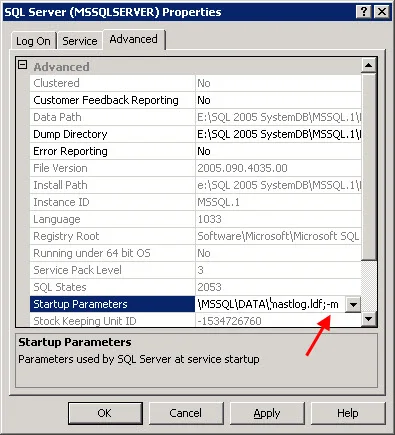
Under "Startup Parameters", copy and paste that whole string to Notepad as a backup. Go back to the box and add the following right at the end of the string:
;–m
It should look like this:
Press OK when done. What this does is forces SQL to start in single user mode.
-
Now right click the SQL server you had stopped before and start it.
-
Now if you go to SQL Management Studio, it will error out. The only way to get into it is using sqlcmd. So open a command prompt and type:
sqlcmd
which should give you a "1>" prompt denoting line 1. If it gives you an error saying "Login failed for user 'xxxxx'. Reason: Server is in single user mode. Only one administrator can connect at this time. (Microsoft SQL Server, Error: 18461", make sure all management consoles are closed and there are no other users logged in using it. Also go to your Windows services and stop all the following services:
SQL Server Agent SQL Server FullText Search SQL Server Integration Services SQL Server Reporting Services SQL Server VSS Writer
Only SQL Server and SQL Browser should be running. Try "sqlcmd" at the command prompt and it should let you through.
- Now type the following to add your domain user account with admin privileges:
EXEC sp_addsrvrolemember 'domain\useraccount', 'sysadmin'; GO
it should give you blank line if it was successful.
-
Now go back into the SQL Server Configuration Manager and remove the ";–m" you had placed under Startup Parameters. Restart the SQL server again.
-
Now hit SQL Management studio and login using the account you have created using Windows Authentication. You should have full admin privileges to create additional accounts, reset the SA account, change server roles, change user mapping, etc. Hope this helps. :)

Jason Samuel
Product leader, advisor, and international speaker with 27+ years in enterprise end-user computing, security, and cloud. Has deployed infrastructure at Fortune 500 scale across 34 countries. 1 of 3 people globally to hold Citrix CTP + VMware vExpert + VMware EUC Champion concurrently. 200+ articles, 1,000+ reader discussions.
Previous Comments (5)


