
Getting Java web applications to work on Citrix XenApp
You might get a request to to publish an Internet Explorer URL/link in XenApp for whatever reason. Web applications that use Java Runtime Environment (JRE)/Java applets do not play nicely with Citrix XenApp. The main problem is the Java cache. It wants to write its cache to:
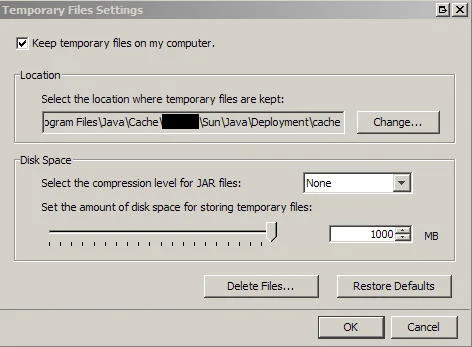
C:\Program Files\Java\Cache\username\Sun\Java\Deployment\cache
by default during a XenApp session but nothing ever gets populated past the "username" part. The directory underneath will be blank and your web application will never load the Java applet.
I'm not a Java expert and I'm not even going to claim the following is any kind of best practice. But this is what I have done in my environments to make the web apps work using XenApp. If you have a better way of doing it, please do comment in this post.
So a little background, I am using Windows Server 2008 R2 with IE9 with Java (JRE) 6 Update 26 installed because my web app requires that specific version of Java.
- Go to "
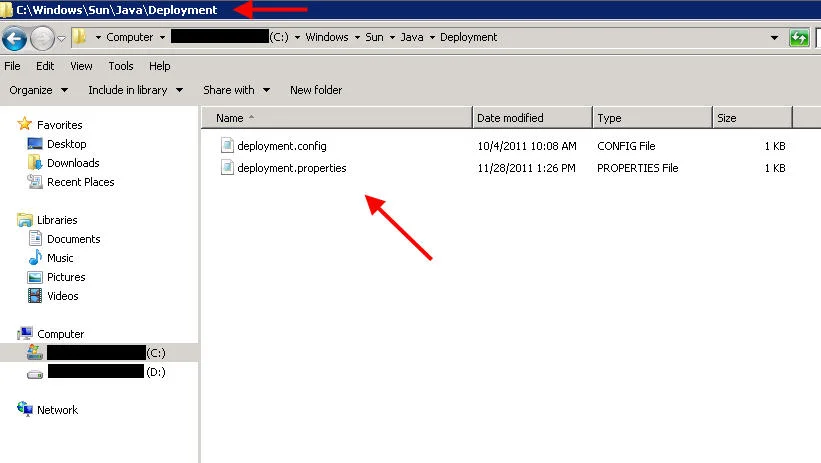
C:\WINDOWS\Sun\Java\Deployment" and create a file called "deployment.config" with the following:
deployment.system.config=file\:C\:/WINDOWS/Sun/Java/Deployment/deployment.properties
- Now create a file called "
deployment.properties" in the same folder with your custom properties. What I do is generate a deployment file and then copy it over to this directory. To do this, open up Internet Explorer and go to your web app. Once Java is invoked, you will notice the Java icon in the notification bar in the bottom right.

Right click on it > Open Control Panel > Settings and you will see a path where temporary files are kept.
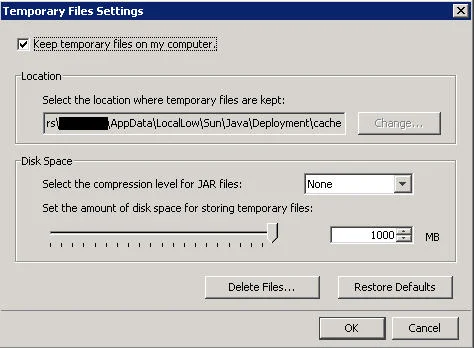
This is the default Java cache and will look like:
C:\Users\username\AppData\LocalLow\Sun\Java\Deployment\cache
Navigate to:
C:\Users\username\AppData\LocalLow\Sun\Java\Deployment\
and there will be a file called "deployment.properties" that was just generated for you. Just copy it over to the "C:\WINDOWS\Sun\Java\Deployment" folder as is.
Now you need to edit this file and specify the Java cache to be somewhere else. In my case, I want it to go to a folder on my D: drive called JavaCache. So all I add is this line (make sure the slashes are just like this, I know it's a little odd):
deployment.user.cachedir=D\:\\JavaCache
So now my "deployment.properties" file will look like this:
#deployment.properties
#Mon Nov 28 13:17:40 CST 2011
deployment.javaws.cache.update=true
deployment.version=6.0
deployment.user.cachedir=D\:\\JavaCache
deployment.capture.mime.types=true
deployment.javapi.cache.update=true
deployment.browser.path=C\:\\Program Files (x86)\\Internet Explorer\\iexplore.exe
#Java Web Start jre's
#Mon Nov 28 13:17:40 CST 2011
deployment.javaws.jre.0.registered=true
deployment.javaws.jre.0.platform=1.6
deployment.javaws.jre.0.osname=Windows
deployment.javaws.jre.0.path=C\:\\Program Files (x86)\\Java\\jre6\\bin\\javaw.exe
deployment.javaws.jre.0.product=1.6.0_26
deployment.javaws.jre.0.osarch=x86
deployment.javaws.jre.0.location=http\://java.sun.com/products/autodl/j2se
deployment.javaws.jre.0.enabled=true
deployment.javaws.jre.0.args=
Yours will probably look different than mine depending on which version of JRE you have installed.
- Make sure to create the location you specified above. It can be a blank folder and will be populated the first time someone invokes Java. So in my case, I created:
D:\JavaCache
- Now publish IE and the URL like you normally would in the XenApp console. IMPORTANT NOTE: If you are using 32 bit IE and installed 32 bit Java, DO NOT publish 64 bit IE by accident. It will not be able to use the 32 bit Java. You will need to install 64 bit Java if you intend to use 64 bit IE.
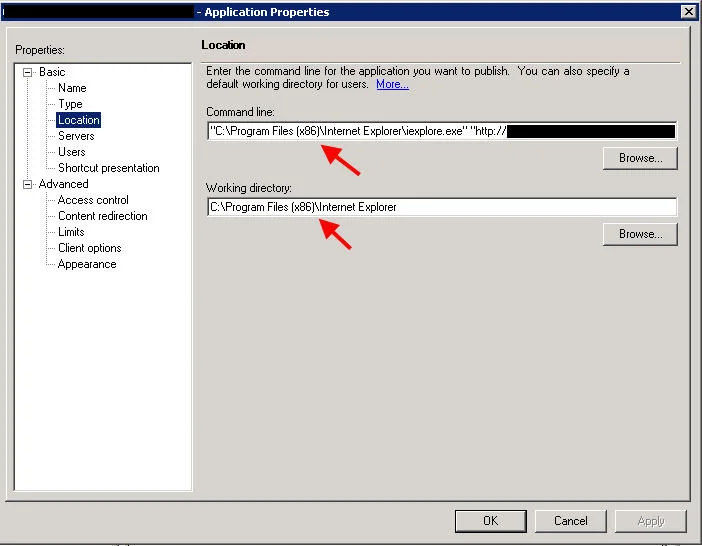
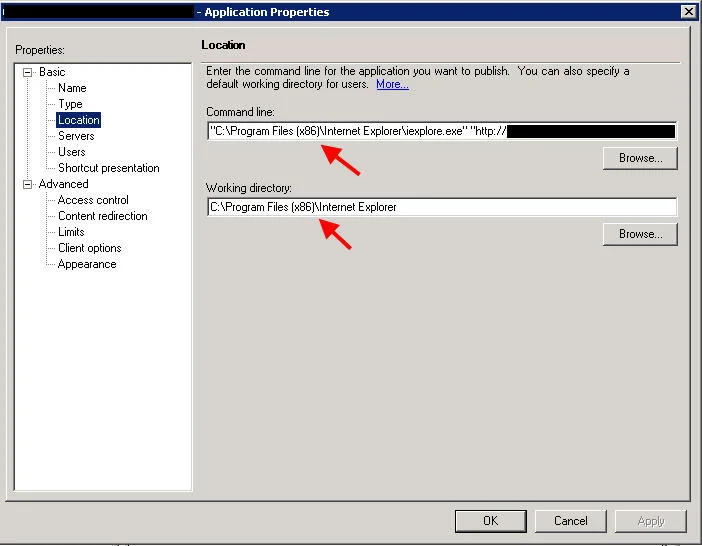
Here is an example of how 32 bit IE should be published on Server 2008 R2 in XenApp 6.5: Command line:
"C:\Program Files (x86)\Internet Explorer\iexplore.exe" "http://www.google.com"
Working directory:
C:\Program Files (x86)\Internet Explorer
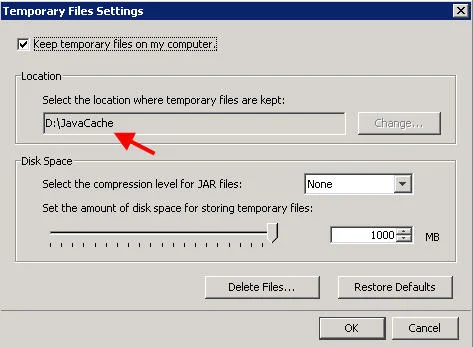
- That's it, now launch your published IE web app from your desktop via the WI and it should load just fine. Once Java is invoked, verify your Java cache is pointed at the new location. Just look in your notification area for the Java icon, right click on it > Open Control Panel > Settings and you should see "
D:\JavaCache".
One interesting thing to note, older versions of Java pull their deployment configuration from a different location. So if putting everything in:
C:\WINDOWS\Sun\Java\Deployment
does not work for you, try copying them to:
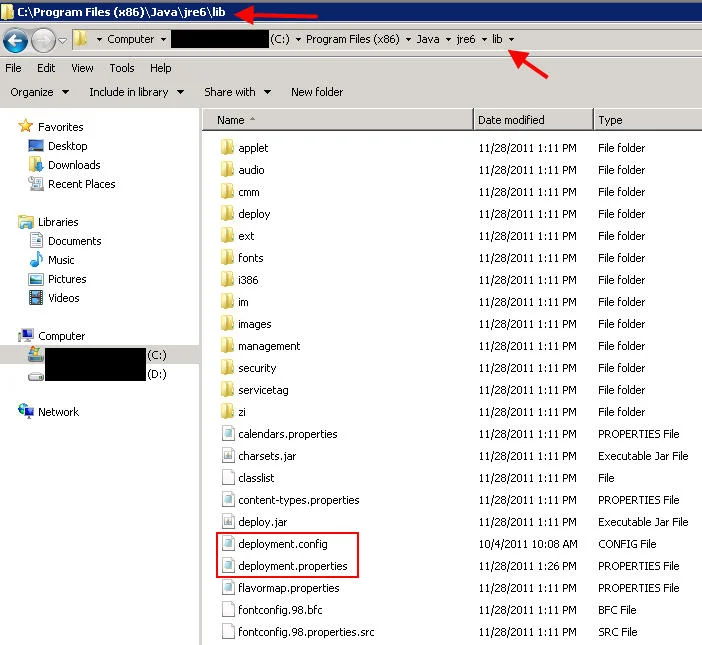
C:\Program Files (x86)\Java\jre6\lib
and everything should work. Just make sure to edit your "deployment.config" accordingly with the new path to "deployment.properties". An example, I have a web app that requires JRE 6 Update 11 and it pulls the deployment info from the lib folder and completely ignores the one in the Windows folder:
I also want to note that Oracle has pretty good documentation on configuring the deployment configuration file to your liking here:
http://docs.oracle.com/javase/1.5.0/docs/guide/deployment/deployment-guide/properties.html
You can do quite a bit of customization to it. Some of my web apps require certain things to be configured in Java such as suppressing certain warning messages and I have used this article to set those switches. For example setting the Java System Cache:
deployment.system.cachedir=D\:\\JavaSystemCache
or Trusted Certs store:
deployment.user.security.trusted.certs=D\:\\JavaCertStore\\security\\trusted.certs
deployment.system.security.trusted.certs=D\:\\JavaCertStore\\security\\trusted.certs
or getting rid of Java warning prompts:
deployment.security.notinca.warning=false
deployment.security.expired.warning=false
deployment.security.mixcode=HIDE_RUN
or even setting Java heap size memory limits:
deployment.javaws.jre.0.args=-Xmx256m -Xms64m
deployment.javapi.jre.0.args=-Xmx256m -Xms64m
where 0 should be the Java version, but it has worked for me without having to specify it in the past. If you do want to put the version it should be like this:
deployment.javaws.jre.1.6.0.args=-Xmx256m -Xms64m
deployment.javapi.jre.1.6.0.args=-Xmx256m -Xms64m
Again, I'm not a Java expert so there may be an easier way of doing this but this is how I have been able to get my Java web apps to work with XenApp. Let me know of your experiences.

Jason Samuel
Product leader, advisor, and international speaker with 27+ years in enterprise end-user computing, security, and cloud. Has deployed infrastructure at Fortune 500 scale across 34 countries. 1 of 3 people globally to hold Citrix CTP + VMware vExpert + VMware EUC Champion concurrently. 200+ articles, 1,000+ reader discussions.
Previous Comments (19)


