
In a worst case scenario and all your web servers have failed, what do you do? You could have a standby group of servers or CDN on or off premise to pick up the load or at least display a maintenance page but this is worst case scenario. A catastrophic failure and ALL your servers are down due to a code issue, server configuration issue, database issue, virtual infrastructure failure, SAN failure, maintenance being performed on all servers at once (I hope not on purpose), virus outbreak, or whatever else kind of horrible scenario you can think of. You get traffic all the way up to the Netscaler appliance but since your vserver is down, the user's browser will timeout as if your company fell off the face of the earth. This is very unprofessional for any organization. Users timing out or seeing a "page could not be displayed" error is unacceptable.
So the solution is to have the Netscaler display a maintenance page with the code hosted on itself somehow. I tried several different methods including content filtering and responder policies using HTML. Originally I even thought I could leverage integrated caching to serve up cached pages and static content like images. I settled only using a responder policy initially which worked. Citrix even has a very nice knowledge center article (CTX117337: How to Configure a Maintenance Web Page by using the Responder Feature of the NetScaler Appliance) which is located here:
http://support.citrix.com/article/CTX117337
In a nutshell, what the author of the article wrote is basically more or less the same conclusion I reached as well. I just did it via GUI and that is what I will show you below. But I was not happy with the result. Keep reading and you will see why. FYI, I did all the screenshots below on an NS 9.1 appliance but it is the same procedure on NS 9.2 or any other version.
- I am going to assume you have servers, services/service groups, and a vserver already that is UP and running. I will call them the following in this example: vserver - lb_vsver_mywebsite service group - svcgrp_myservicegroup server - svr_mywebserver Excuse the redactions in my screenshots please, I had some other configurations on this test appliance and I don't want to confuse you with it: vserver:

service group:

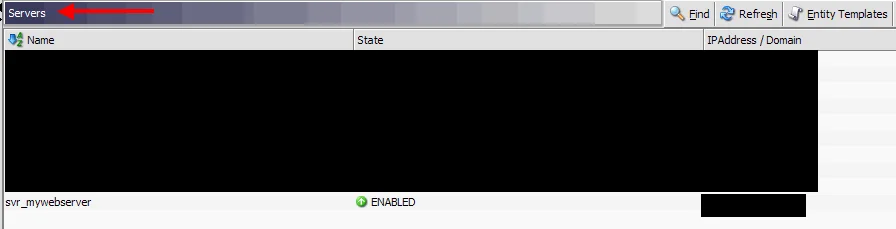
server:
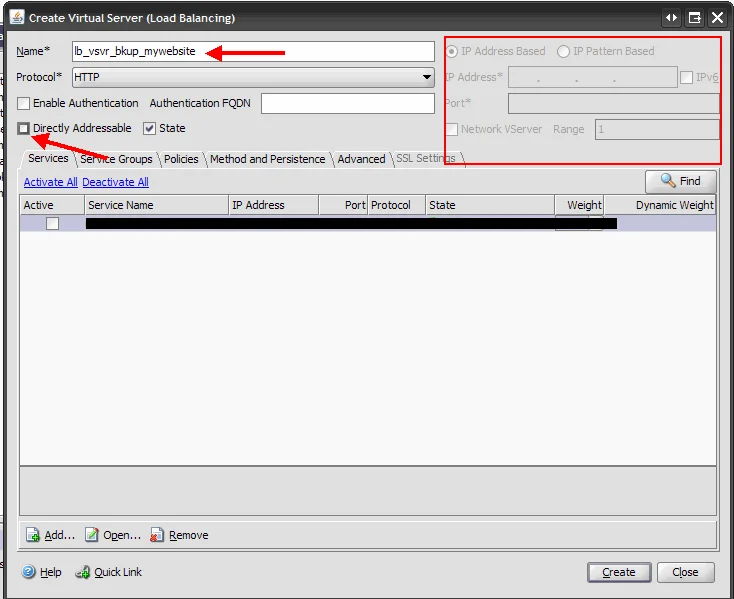
- Now create a backup vserver for your existing live vserver. In this example, I have called it "lb_vsvr_bkup_mywebsite". But instead of giving it an IP, just uncheck directly addressable. This will cause the IP area to become greyed out: backup vserver:
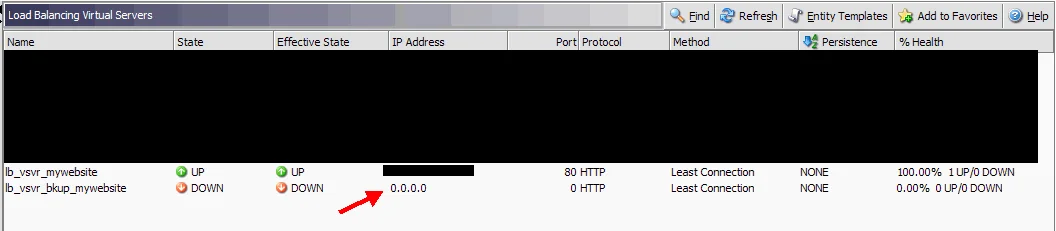
When you click Create, it will show up as running on the IP 0.0.0.0 like below:
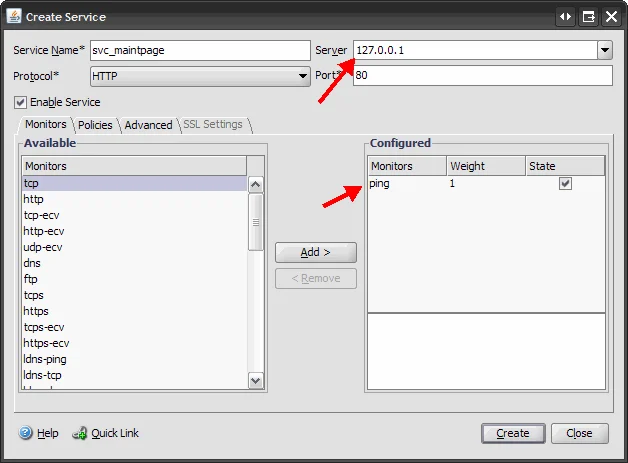
- Now you need to create a service that is always UP and bind it to this backup vserver so that it will always remain UP. Just go under Load Balancing > Services, and click Add. Then create a service called "svc_maintpage" but for the Server, type in the localhost IP of 127.0.0.1, add a ping monitor, and press create.
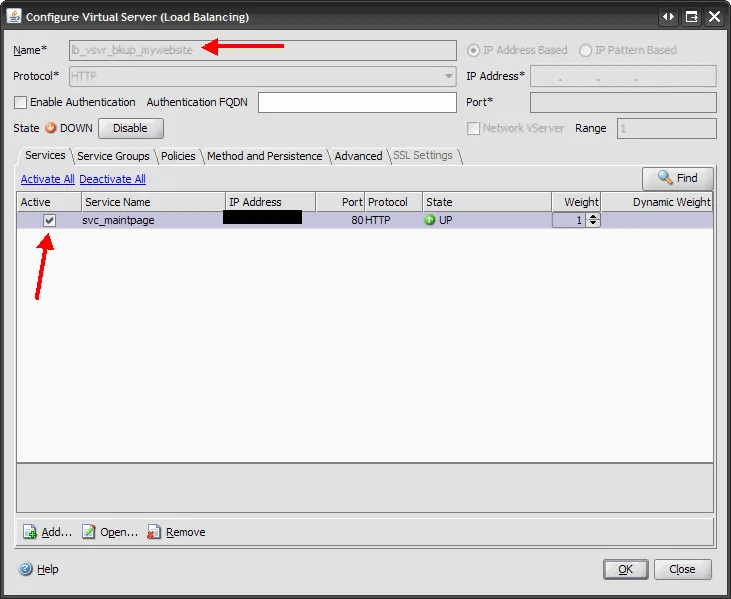
- Now go back to your backup vserver and bind this new service to it. Immediately after clicking OK, the backup vserver should go into an UP state. You might need to refresh your window if it doesn't.
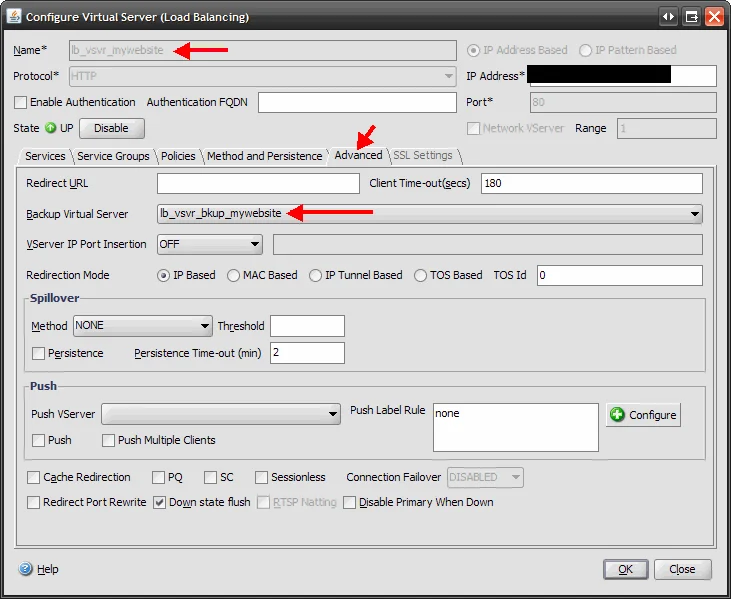
- Now double click on your live vserver and under the Advanced tab, choose "lb_vsvr_bkup_mywebsite" for the Backup Virtual Server option and press OK:
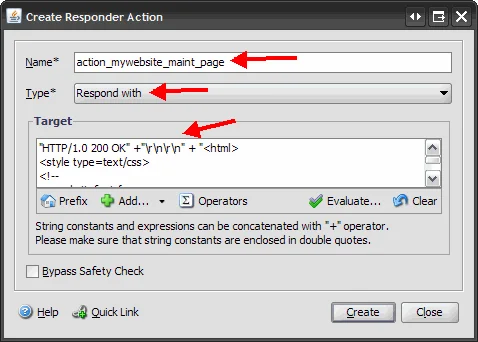
- Now under Responder > Action, click Add to create a new action. This is where you get to put some HTML and CSS. It must be very basic, all parenthesis have to be removed when using CSS in the HTML body or it will give you can error, and the whole policy must be under 255 characters total. I will name mine "action_mywebsite_maint_page" and here is an example of my policy I will use with it:
"HTTP/1.0 200 OK" +"\r\n\r\n" + "<html>
<style type=text/css>
<!--
.mywebsitefont {
	font-size: 24px;
}
-->
</style>
<body class=mywebsitefont>Sorry, our website is currently not available.
Please try again later.</body></html>" + "\r\n"
- Now under Responder > Policy, click Add to create a new policy that will call on the action you just created. In this example, all we need is for the HTTP request to be valid and we will display the maintenance page. I will name it "resp_policy_mywebsite_down" in this example. Choose the action you just made in the Action drop down and for the expression, just put:
HTTP.REQ.IS_VALID
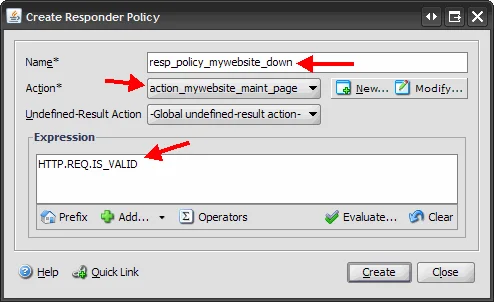
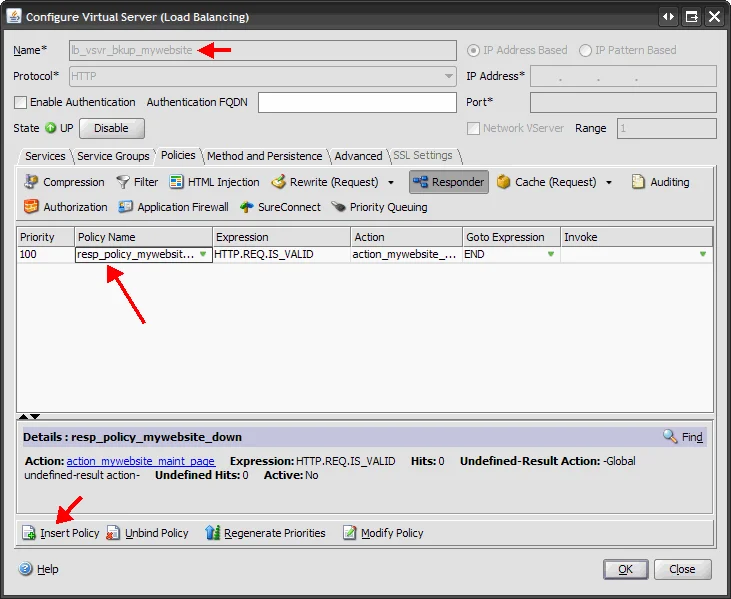
- Now go back to the Load Balancing folder and double click your backup vserver and bind the responder policy to it like below:
- Now to test. Open up your website in a browser and it should display as normal right now. Now login to your webservers and turn off your websites. Immediately your live vserver should say DOWN for the State but the Effective State should remain UP. This is because all traffic is being forwarded to your backup vserver you specified earlier which is set to always be up:

Refresh your browser and you should now see the maintenance page you created like below:
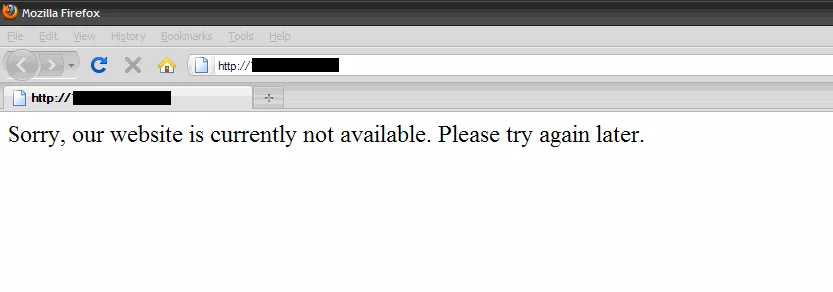
As you can see, a simple HTML page like above is not very professional. We need more HTML/CSS than 255 characters to work with and we need images working to make it look professional. At least it is better than a page timeout though!
Now with a content filtering policy, you don't have to worry about a character limit. You can get away with putting HTML/CSS in a content filter policy. But again, where do the images come from?
I decided to call Citrix and see if they have run into a request like this. They had not. Now off the bat both techs I spoke to said what I was trying to do is not supported by Citrix. A Netscaler is not designed to do this. But luckily the second tech Brian at Citrix Support was just as enthusiastic about getting something to work as I am and wasn't going to give up easily so we went over a few scenarios. The Netscaler does have an Apache web server on board, that is how the admin GUI is display to you. It is also how the Access Gateway portal is displayed to the end user. We needed to figure out a way to leverage the Apache web server on board the Netscaler to host our images, HTML, CSS, etc. The initial thought was to overwrite the Access Gateway portal and create a responder policy that would do a redirect to an Access Gateway vserver you create. The negatives here are that you are limited to SSL traffic only, have to worry about having a valid cert, you can't bind all the policies you might need to it like you can a load balanced VIP, etc. I didn't feel that comfortable destroying functionality to gain other functionality either.
In the end, the solution was easy and did not require overwriting the Access Gateway portal. We can host our HTML, CSS, and images on the Netscaler itself and point Apache at it. Brian did a quick proof of concept in his lab. Then I improved on it a bit. Here is the end result which I am sure a lot of you will find pretty handy in your organizations. Steps 1 through 5 are the same as above. Then from there, begin these steps:
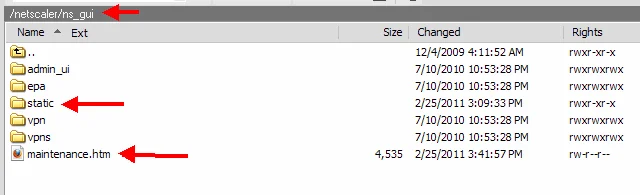
- First we need to get our HTML, CSS, and images on the Netscaler. WinSCP into your Netscaler and go to "/netscaler/ns_gui". The folders you see called admin_ui, vpn, etc. are what host the Netscaler Admin GUI and Access Gateway respectively. So you have the option of putting something in the root of this folder or even create a separate folder here if you want. In my case, I decided to put a "maintenance.htm" in the root and also create a folder called "static" that will host most static content like CSS and images.
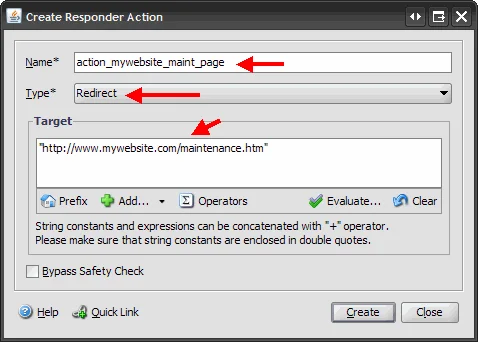
- Now under Responder > Action, click Add to create a new action. Very important, make sure to change the type from Response to Redirect. The action should be the following (with parenthesis included):
"http://www.mywebsite.com/maintenance.htm"
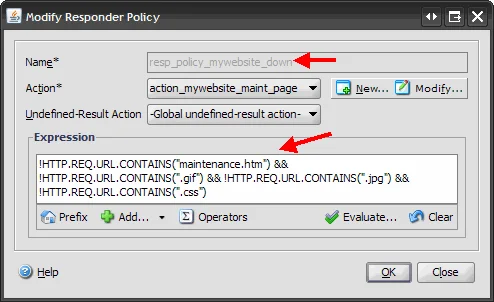
- Now under Responder > Policy, click Add to create a new policy that will call on the action you just created.. Your responder policy will need to allow the maintenance page, plus CSS, .gifs, and .jpgs you might use. So the policy I will use is:
!HTTP.REQ.URL.CONTAINS("maintenance.htm") && !HTTP.REQ.URL.CONTAINS(".gif") && !HTTP.REQ.URL.CONTAINS(".jpg") && !HTTP.REQ.URL.CONTAINS(".css")
- Now go back to the Load Balancing folder and double click your backup vserver and bind this new responder policy to it like I did below:
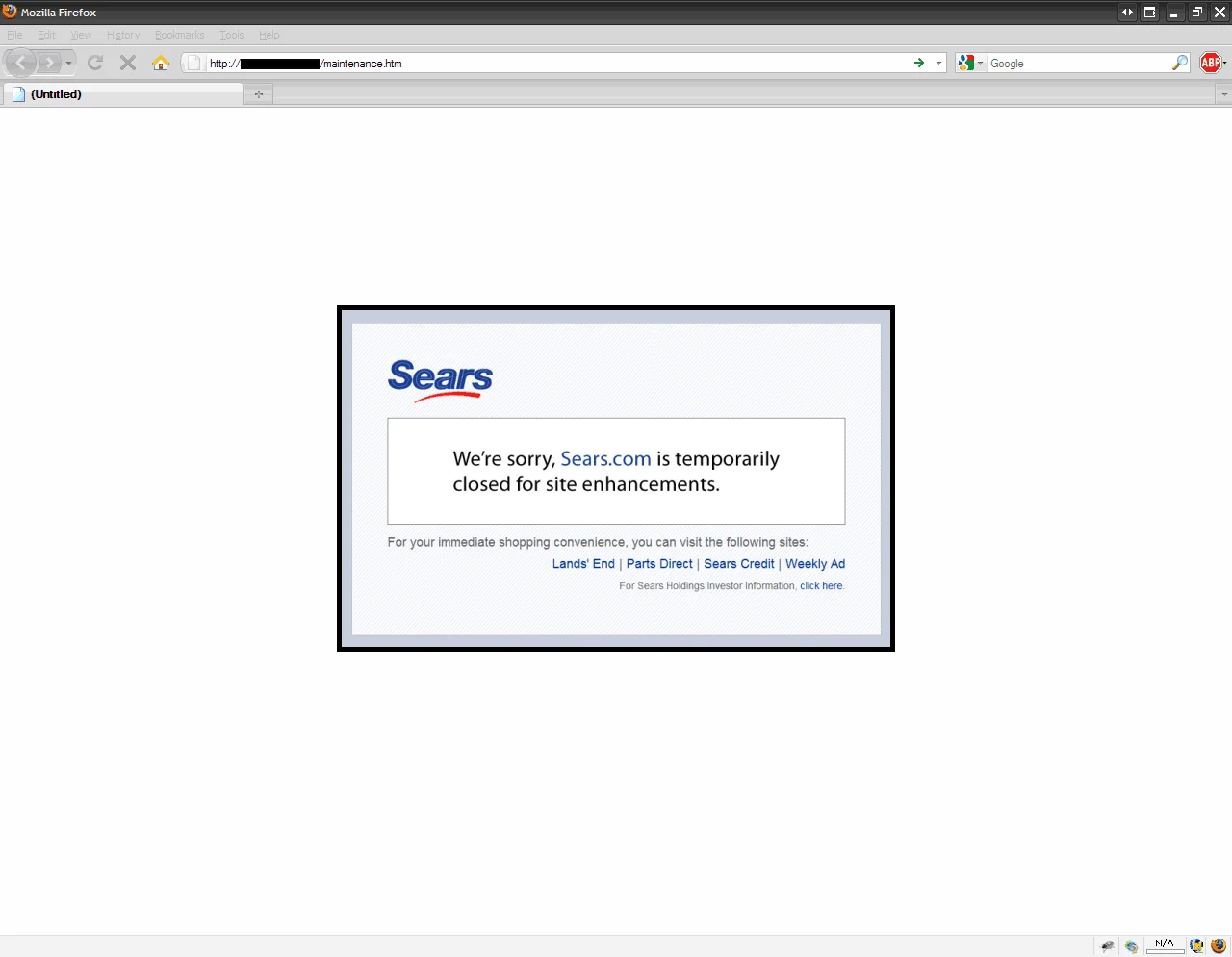
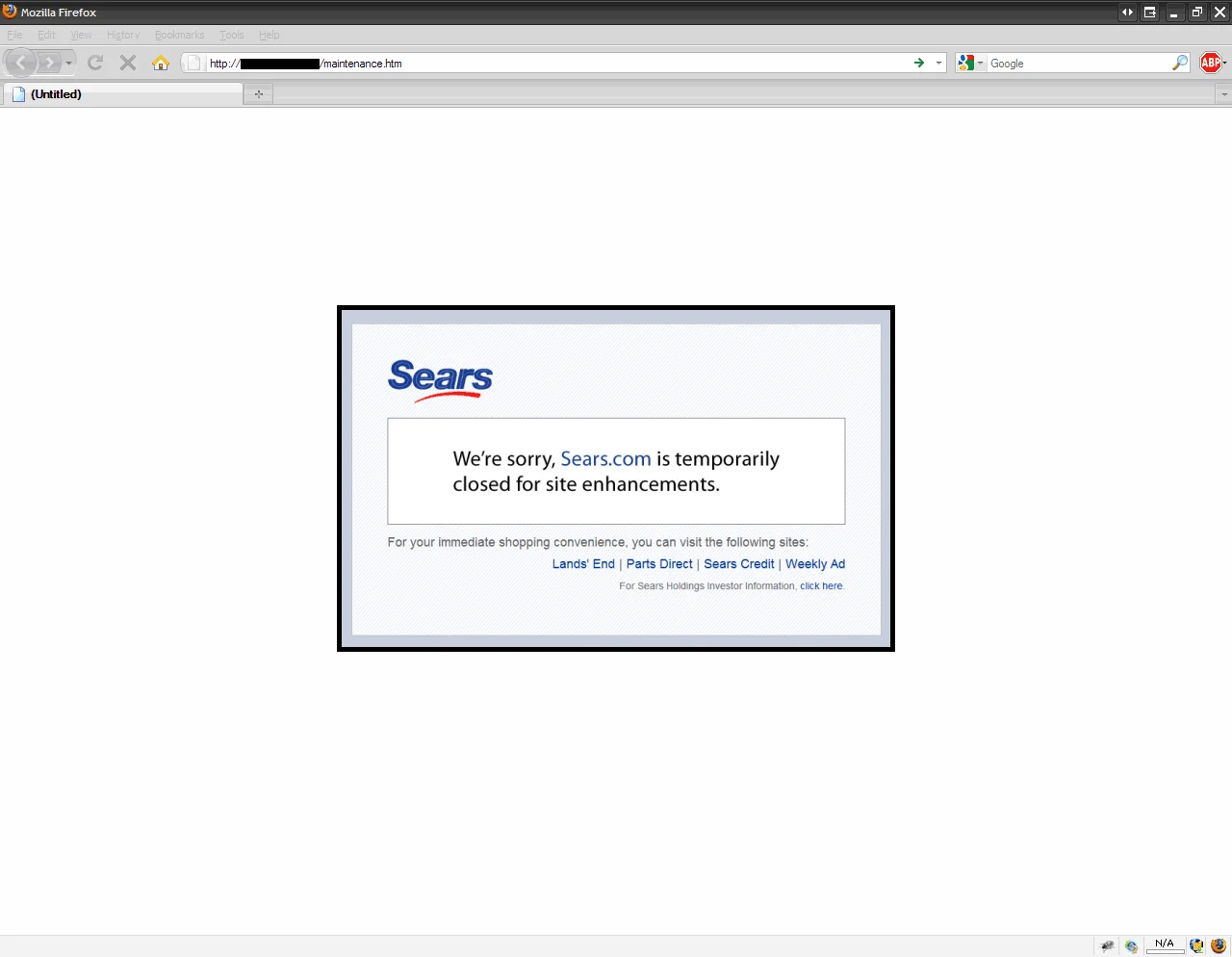
Now if you disable your service groups and check your maintenance page again, you can see how the website displays the full page with nice HTML, CSS, and images. In this example, I borrowed the Sears.com maintenance page. Notice how showing your company logo keeps your branding intact even on a maintenance page which is the correct way to handle a website issue. Tell your users you are aware of the problem and offer alternatives in the meantime (static links along the bottom to other servers that are up and offering content in this example). You don't have to go that far but it's always nice to let your user base know you haven't disappeared and your infrastructure is solid. This is very professional and above all, automated! :)
The only problem here is that when your website is back up, users will still be refreshing on this maintenance.htm page. They will get a 404 error. So you have four options. I usually prefer number 4 personally but it all depends on your needs:
-
Change your maintenance.htm page to say index.htm or whatever page is the default page of the root of your website so when they refresh once the vserver is back up, they will get the live page. You will need to WinSCP into your Netscaler again and change the maintenance.htm file name as well as change it in your Responder Action. The issue here is if let's say you are using .NET, you can't call it index.aspx because Apache on the Netscaler can't parse it.
-
Just create a link on the page that says "Click Here to Try Again" which is pointed at the correct index page. This assumes the end user will actually click the link instead of hitting refresh. You can't be 100% sure they will do this.
-
Create a maintenance.htm page on your servers and then set IIS, Apache, or whatever web server you use to do a 301 redirect to your live index page. You can leverage the Netscaler to do the redirect too of course.
-
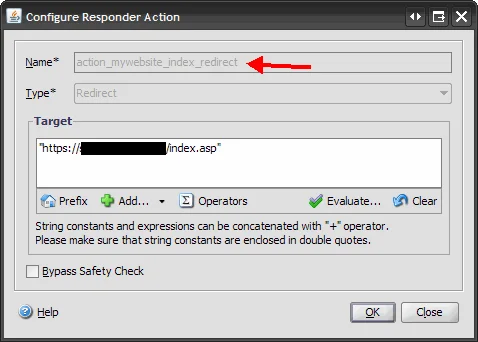
My preferred method. Create a new responder policy saying any maintenance.htm should automatically redirect to index.aspx and bind it only to your real vserver. That way anyone that requests that page when your servers are up will always be redirected to your index page. In this example, I will call my live site's index page index.asp and call the action policy "action_mywebsite_index_redirect". I will also make it redirect to SSL in this example because there is a login box on the index.asp page and I want to keep it secure using https:
I will call the responder policy "resp_policy_index_redirect" and for the expression, tell it to redirect any requests to "/maintenance.htm":
HTTP.REQ.URL.CONTAINS("/maintenance.htm")
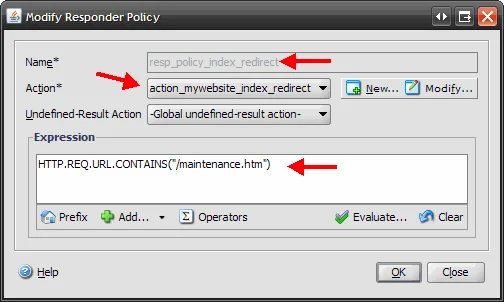
Now bind this to your live vserver:
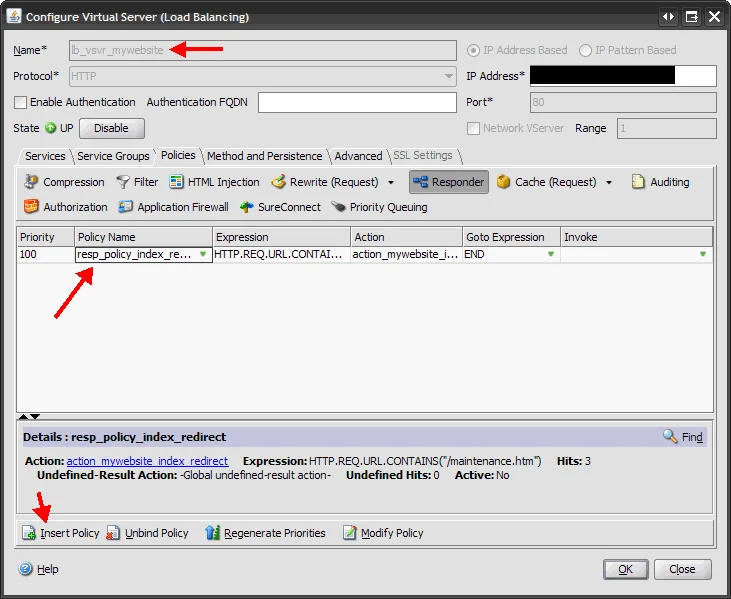
Now you can test it by disabling and enabling your servers or service groups. It should transition automatically between your maintenance page and the live index page. :)
One thing I would like to point out. On any of your Responder Policies or Actions, you can always view the hit counter to see if the policy or action is being invoked. This might help you when you are setting this up initially and something goes wrong and you want to see if the policy or action is being hit:

So there it is. Your Netscaler is now an emergency web server that automatically puts up a professional looking maintenance page in a worst case scenario when every backend web server you have is down. A big thank you to Brian at Citrix for the help! If anyone can think of any improvements to this process or has any trouble with it, please reply I would love to hear about your experience.

Jason Samuel
Product leader, advisor, and international speaker with 27+ years in enterprise end-user computing, security, and cloud. Has deployed infrastructure at Fortune 500 scale across 34 countries. 1 of 3 people globally to hold Citrix CTP + VMware vExpert + VMware EUC Champion concurrently. 200+ articles, 1,000+ reader discussions.
Previous Comments (22)

add responder action mtn_pg_act respondwith q{"HTTP/1.0 200 OK" +"\r\n\r\n" + "Sorry, this page is currently not available. Please try after some time."+"Some more random text-just filling out space so grow to 255 chars-Some more random text-just filling out space so grow to 255 charsSome more random text-just filling out space so grow to 255 charsSome more random text-just filling out space so grow to 25"+"Some more random text-just filling out space so grow to 255 chars-Some more random text-just filling out space so grow to 255 charsSome more random text-just filling out space so grow to 255 charsSome more random text-just filling out space so grow to 25"+"Some more random text-just filling out space so grow to 255 chars-Some more random text-just filling out space so grow to 255 charsSome more random text-just filling out space so grow to 255 charsSome more random text-just filling out space so grow to 25"+"Some more random text-just filling out space so grow to 255 chars-Some more random text-just filling out space so grow to 255 charsSome more random text-just filling out space so grow to 255 charsSome more random text-just filling out space so grow to 25"+"" + "\r\n"}
add responder action mtn_pg_act respondwith q{"HTTP/1.0 200 OK" +"\r\n\r\n" + "Sorry, this page is currently not available. Please try after some time." + "\r\n"}
Works perfectly as expected. Now delete the action that was just created. We will add it again but this time, increase that same action past 255 char and join them together with plus signs per Ronan's recommendation:
add responder action mtn_pg_act respondwith q{"HTTP/1.0 200 OK" +"\r\n\r\n" + "Sorry, this page is currently not available. Please try after some time." + "Sorry, this page is currently not available. Please try after some time." + "Sorry, this page is currently not available. Please try after some time." + "Sorry, this page is currently not available. Please try after some time." + "Sorry, this page is currently not available. Please try after some time." + "Sorry, this page is currently not available. Please try after some time." + "Sorry, this page is currently not available. Please try after some time." + "Sorry, this page is currently not available. Please try after some time." + "Sorry, this page is currently not available. Please try after some time." + "Sorry, this page is currently not available. Please try after some time." + "Sorry, this page is currently not available. Please try after some time." + "Sorry, this page is currently not available. Please try after some time." + "Sorry, this page is currently not available. Please try after some time." + "Sorry, this page is currently not available. Please try after some time." + "Sorry, this page is currently not available. Please try after some time." + "Sorry, this page is currently not available. Please try after some time." + "Sorry, this page is currently not available. Please try after some time." + "Sorry, this page is currently not available. Please try after some time." + "Sorry, this page is currently not available. Please try after some time." + "Sorry, this page is currently not available. Please try after some time." + "Sorry, this page is currently not available. Please try after some time." + "Sorry, this page is currently not available. Please try after some time." + "Sorry, this page is currently not available. Please try after some time." + "Sorry, this page is currently not available. Please try after some time." + "Sorry, this page is currently not available. Please try after some time." + "Sorry, this page is currently not available. Please try after some time." + "Sorry, this page is currently not available. Please try after some time." + "Sorry, this page is currently not available. Please try after some time." + "Sorry, this page is currently not available. Please try after some time." + "Sorry, this page is currently not available. Please try after some time." + "Sorry, this page is currently not available. Please try after some time." + "Sorry, this page is currently not available. Please try after some time." + "Sorry, this page is currently not available. Please try after some time." + "Sorry, this page is currently not available. Please try after some time." + "Sorry, this page is currently not available. Please try after some time." + "Sorry, this page is currently not available. Please try after some time."+ "\r\n"}
And there you go, over 255 chars works perfectly! Here is a screenshot of it in the GUI after adding:
http://www.jasonsamuel.com/wp-content/uploads/2011/03/mtn_pg_act.gif
Thanks again for catching this Ronan.


