
How to launch multiple sessions of a XenApp 6.5 application without stealing the original session
If you have an application that requires more that one session per user, as in they want 2 sessions open to the same application concurrently, there are a few things you need to do. You have run through all these steps. Otherwise you'll be left scratching your head trying to figure out why the 2nd session keeps stealing the 1st session and you only get 1 application window open. :)
-
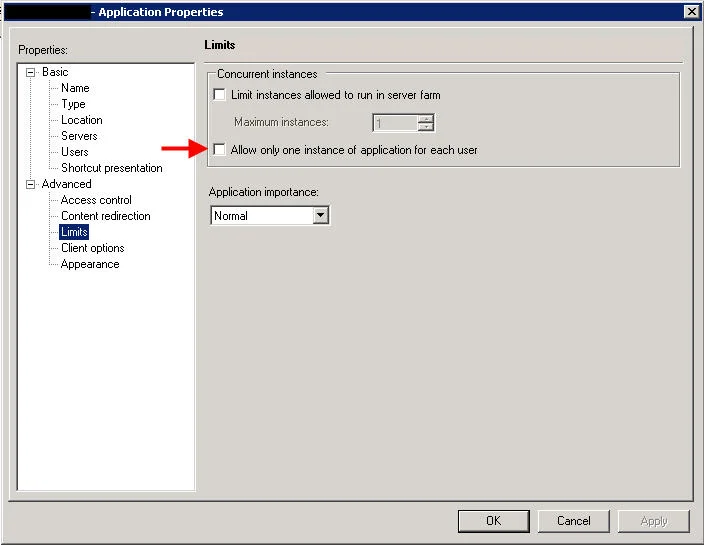
Verify the app is set to allow multiple sessions. By default "Allow only one instance of application for each user" is unchecked. Leave it like that.
-
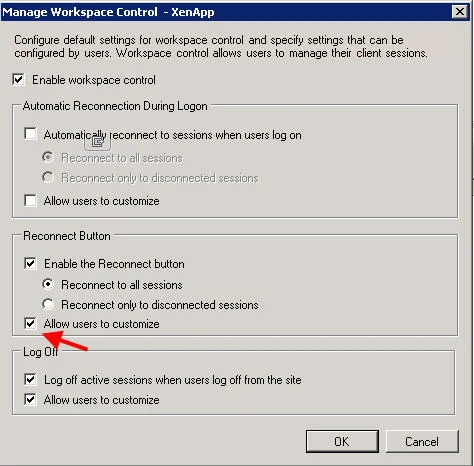
Log into your Web Interfaces and right click on your XenApp Web Site. Then click Workspace Control. Make sure the Reconnect Button is set to "Allow users to customize". This allows the select users who need concurrent application sessions to modify their settings without having to impact the rest of your users.
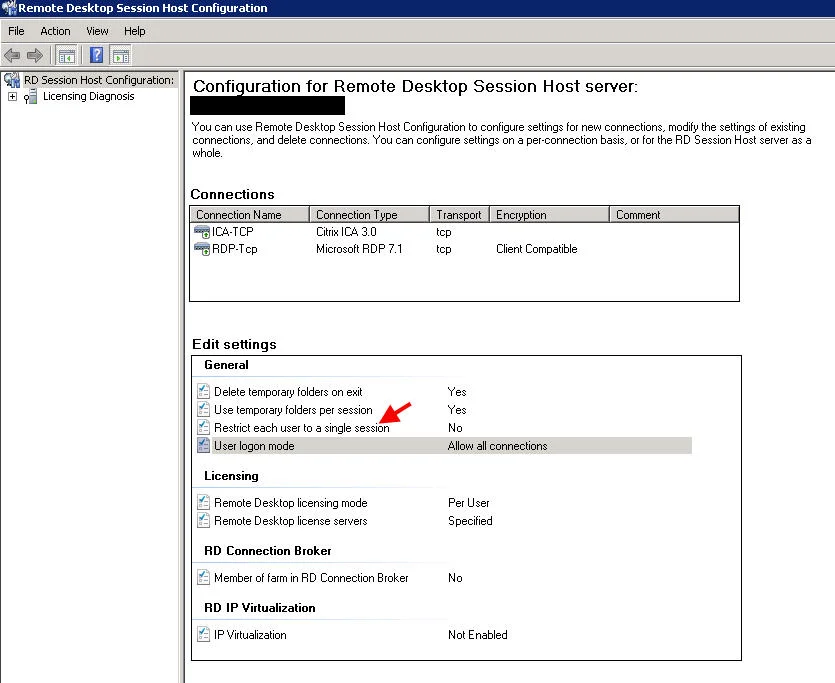
- Verify Remote Desktop Session Host on your XenApp servers is set to allow more than 1 session. Most people forget this one since it's not really a Citrix setting. Go to Start > All Programs > Administrative Tools > Remote Desktop Services > Remote Desktop Session Host Configuration. Double click on "Restrict each user to a single session":
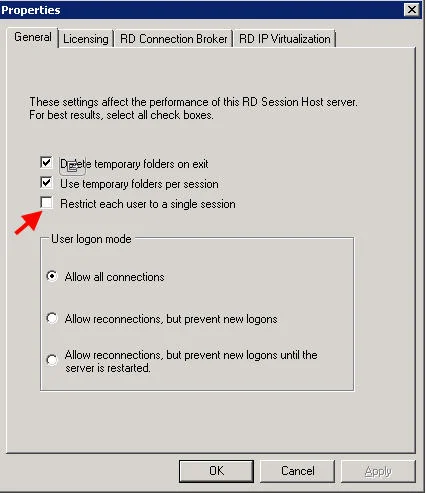
and under the "General" tab, uncheck "Restrict each user to a single session":
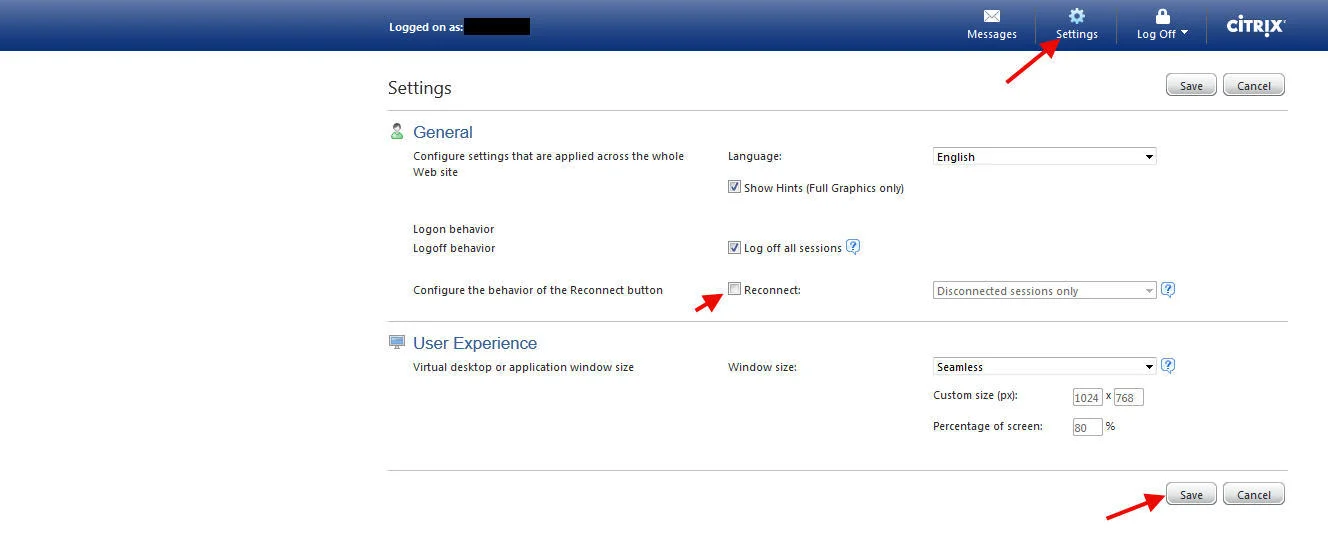
- Have the user login to the Web Interface. Have them click Settings in the top right and uncheck the "Reconnect" option. Then hit Save:
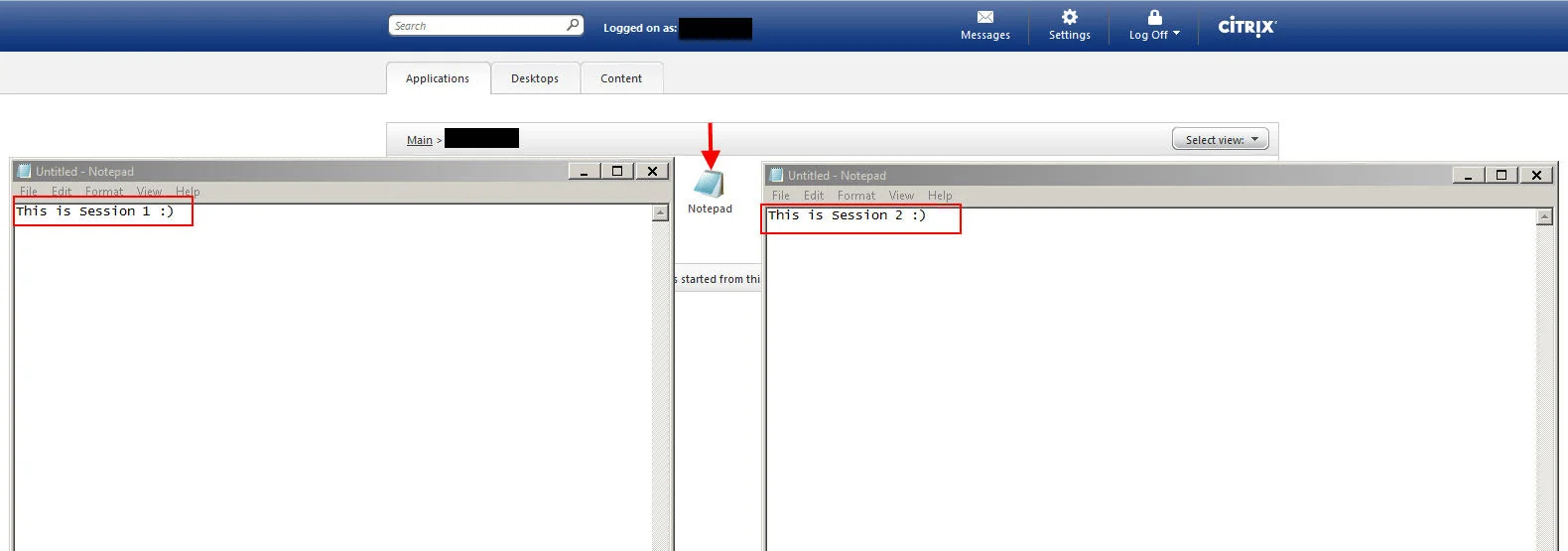
- Now have the user try to launch 2 sessions of the same app one right after another. You should have 2 sessions launch now. Here is an example with Notepad:

Jason Samuel
Product leader, advisor, and international speaker with 27+ years in enterprise end-user computing, security, and cloud. Has deployed infrastructure at Fortune 500 scale across 34 countries. 1 of 3 people globally to hold Citrix CTP + VMware vExpert + VMware EUC Champion concurrently. 200+ articles, 1,000+ reader discussions.
Previous Comments (5)


