
How to setup password-less phone sign-in authentication with Microsoft Authenticator, Azure AD, and Citrix Workspace
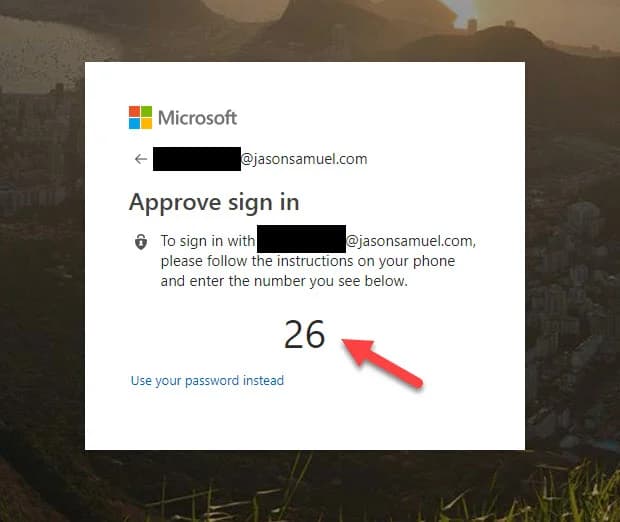
Password-less phone-sign with Microsoft Authenticator is very different from traditional Azure MFA I've written many guides on over the years. Traditional Azure MFA (in all it's many deployment models) required a user to know their password and once they entered it, they would get a push notification, time-based one-time password (TOTP), phone call, SMS, etc. as options for the 2nd factor to complete authentication. Phone calls and SMS are becoming obsolete for several reasons so push and TOTP are the real methods most everyone is using these days. But it still relies on passwords to work. Probably one of the topmost problematic issues facing IT organizations these days.
This new method allows you to completely replace your password with a "just in time" number match on your phone's Authenticator app as the first factor + a high assurance biometric like Touch ID for the 2nd factor to complete the sign-in. This 2-way communication with the identity provider (IdP), in this case, Azure AD, makes the phone itself a strong credential and a password is no longer required!
This feature is currently in Public Preview and I encourage all organizations to begin testing this for many reasons. I'll write a more detailed follow-up piece to these instructions on why a combination of this and other modern password-less authentication methods like Windows Hello for Business and FIDO2 security keys are the future for your organization. In my personal opinion Authenticator should be first and foremost in your arsenal for mobility. Excellent user experience with high security, control, and visibility for IT. Imagine your company laptop with Windows Hello enabled, your personal mobile phone with Authenticator enabled, and your FIDO2 compatible security key like a YubiKey 5 all sitting on your desk. Then the unforeseeable happens, a fire has broken out, which one would you grab as you ran out the door? 10 out of 10 times a user is going to grab the most personal thing to them, they will protect what their life revolves around, their phone. Capitalize on human nature and deploy a solution you know your users are least likely to misplace. :)
This initial write-up is meant to be a quick "How To" in order for you to get started with your testing without impacting your current authentication methods for your users (yes both Azure AD or AD FS if you are federating). You can use this new authentication method with Azure AD Free, Basic, P1, and P2. I have tested with both Azure AD Free and P2 tenants myself successfully though there may be a caveat with Azure AD Free I have noticed and will get to later. To get started on the configuration: NOTE: You no longer need to do steps 1 through 5 below. You can enable it via the Azure Portal under Authentication Methods and you can select which groups in your organization can have this capability if you don't want to deploy tenant wide. See how to do it in bullet 8 here: https://www.jasonsamuel.com/2019/09/18/how-to-enable-fido2-password-less-authentication-with-microsoft-azure-ad-for-use-with-windows-10-and-saas-web-apps/#Enabling_Authentication_Methods_and_FIDO2_Security_Keys_for_your_Azure_AD_tenant
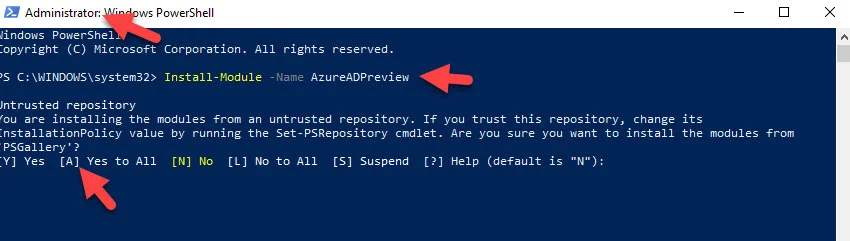
- Run PowerShell with an elevated admin window and type:
Install-Module -Name AzureADPreview
And hit "A" for Yes to all. This will download and install the snap-in and after a few minutes, it will go back to the C:\ prompt. If you are behind a web proxy and can't download via a PowerShell window, you can download and install manually from here: https://www.powershellgallery.com/packages/AzureADPreview/2.0.2.5
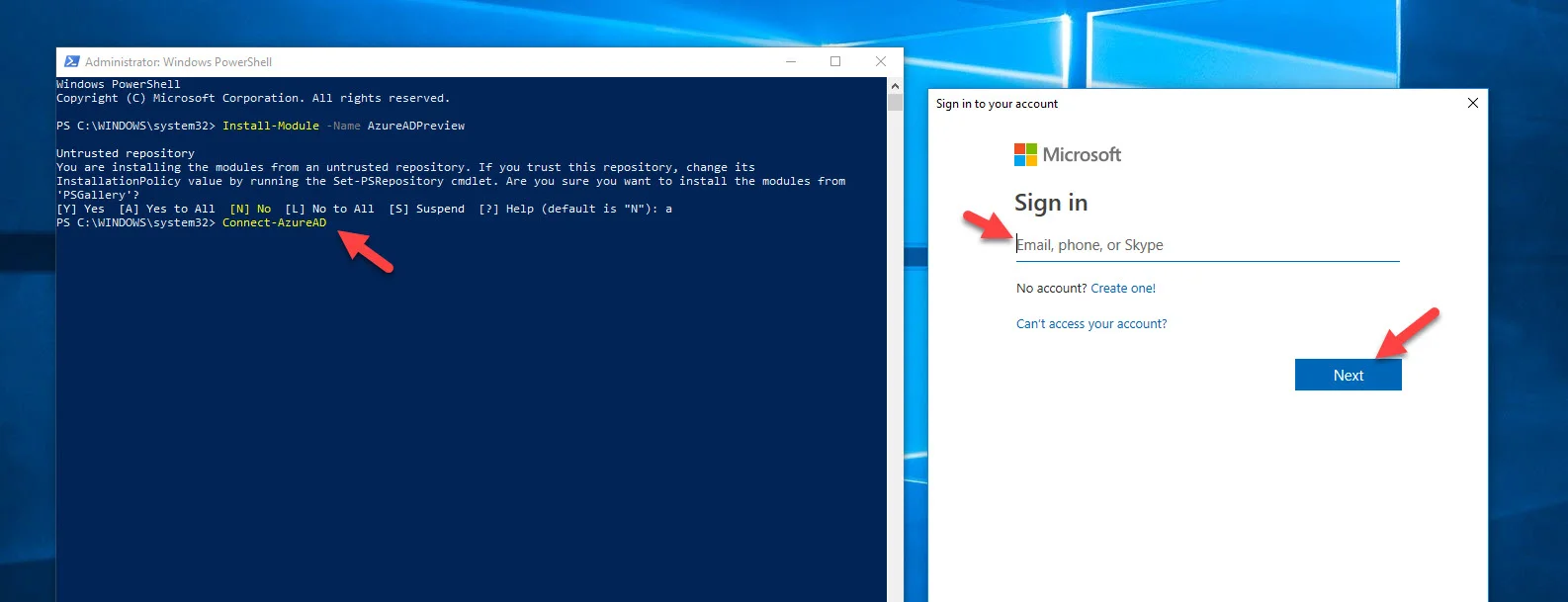
- Type:
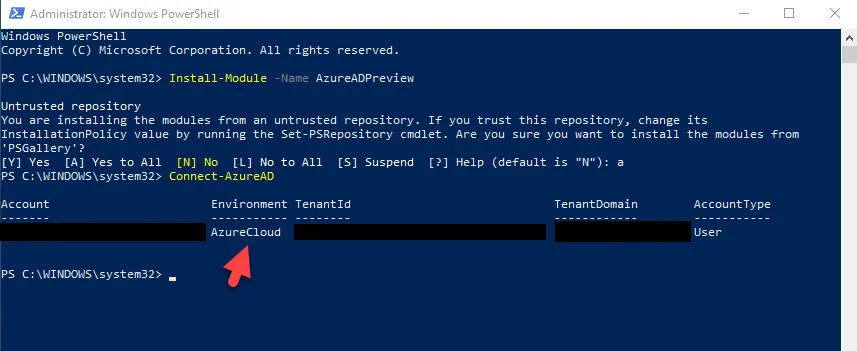
Connect-AzureAD
And a web view will pop up to log into portal.azure.com. Log in with an account with the global admin or security admin role applied to it:
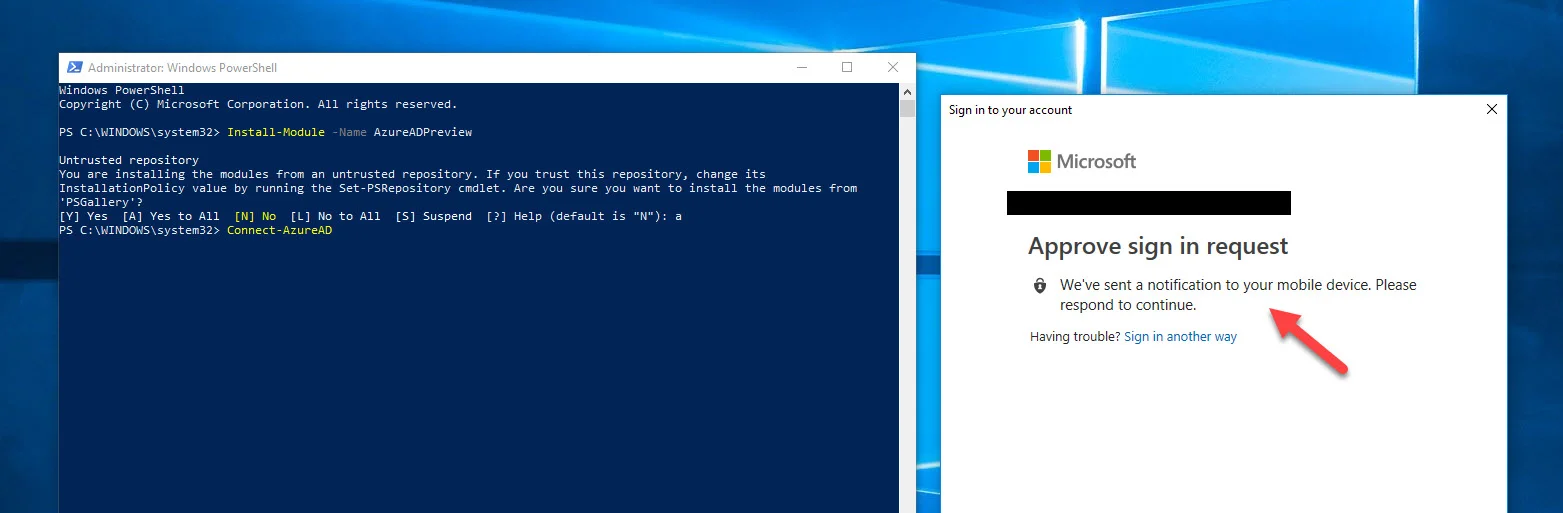
- You may already have traditional push notification based MFA already enabled. Hit accept in Authenticator to complete login:
4. You should see something like this once logged in:
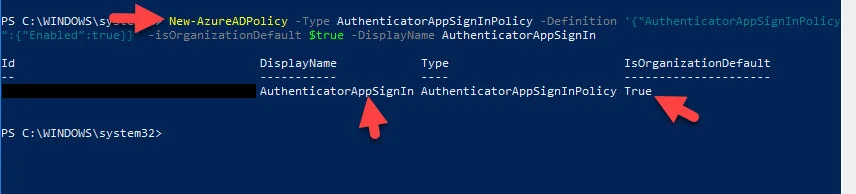
- Now type:
New-AzureADPolicy -Type AuthenticatorAppSignInPolicy -Definition '{"AuthenticatorAppSignInPolicy":{"Enabled":true}}' -isOrganizationDefault $true -DisplayName AuthenticatorAppSignIn
This will apply this new Authenticator sign-in policy to your Azure AD tenant. If for whatever reason you need to disable you can use the same cmdlet to set to "false".
6. If it is a new user, they can simply go to https://aka.ms/mfasetup to scan the QR code and set up the Authenticator app on their phone just like traditional Azure MFA. If a user is already using Microsoft Authenticator with Azure MFA, they will need to make a small change to it in order to enable the new number matching phone sign-in capability that replaces the password.
If a user is already used to using Authenticator with a simple push, they will continue to see this type of message upon attempting to log in to a resource protected by Azure AD:
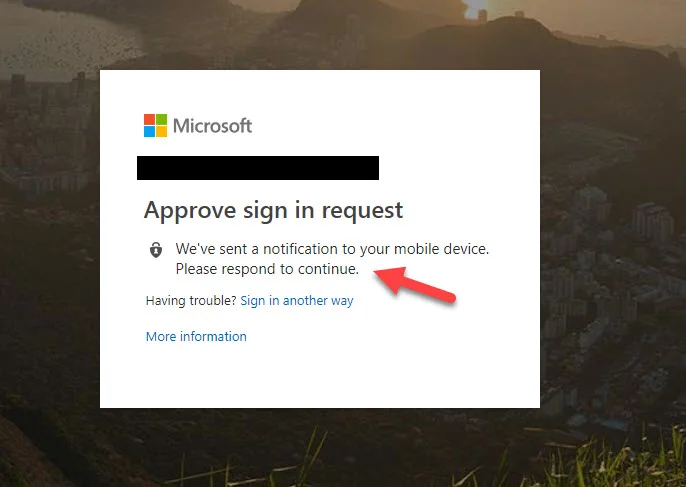
And this kind of push notification from Authenticator on their phone:

7. The user will need to complete Device Registration within their Authenticator app with the Azure AD tenant to enable the phone sign-in capability. Until this is done, they will never get this new login experience and continue with the old experience of Azure AD or AD FS if you are federating. Note, Device Registration with Azure AD is not the same as Device Enrollment with Intune. Device Registration is not MDM (mobile device management). It is just getting Azure AD to trust the mobile device. Once this is done the phone becomes a strong credential and the new password-less experience is enabled.
To complete Device Registration in the Authenticator app, have the user click on the down arrow next to the email address associated with the Azure AD tenant the feature has been enabled on:
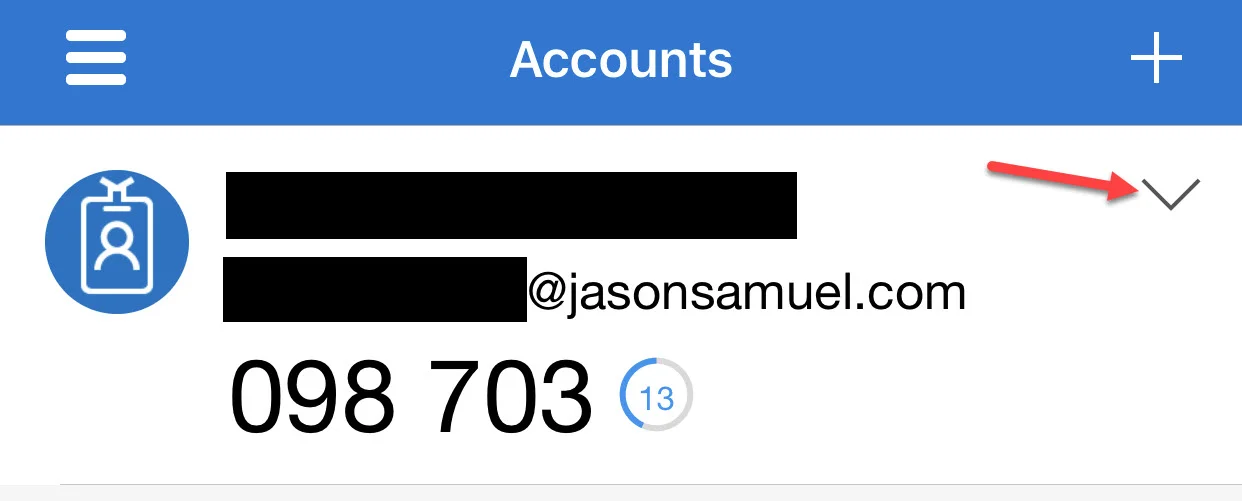
and they will see an option called "Enable phone sign-in" they will need to click on:
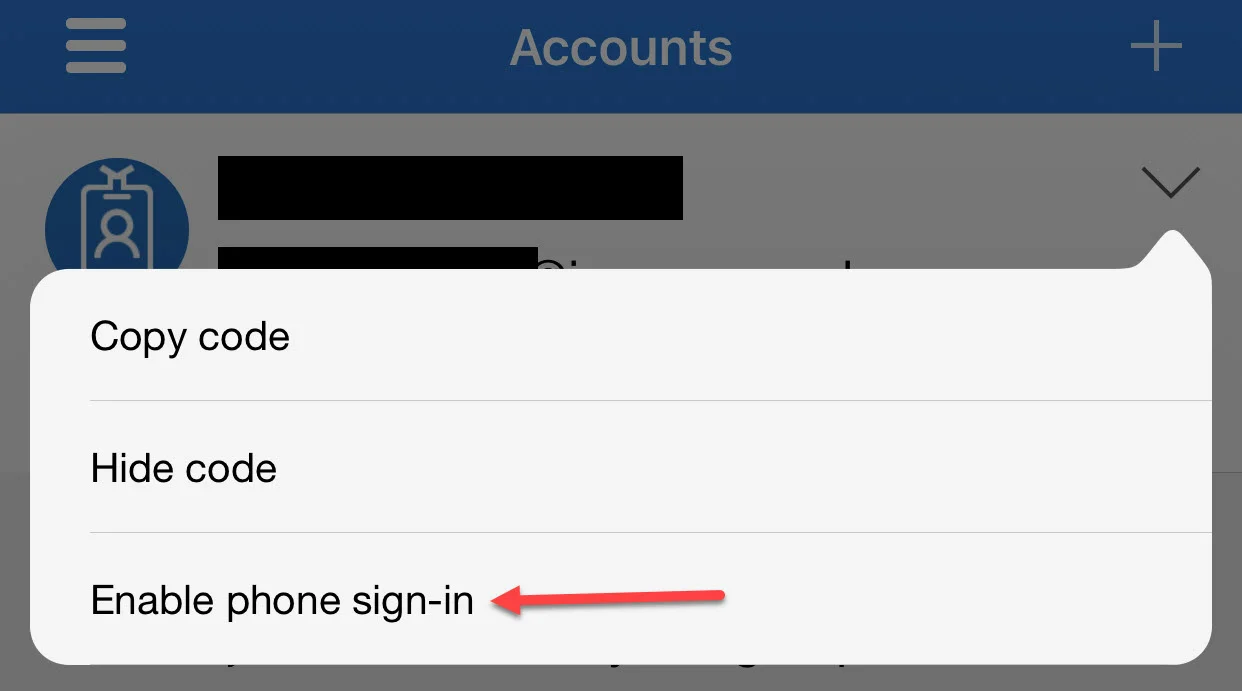
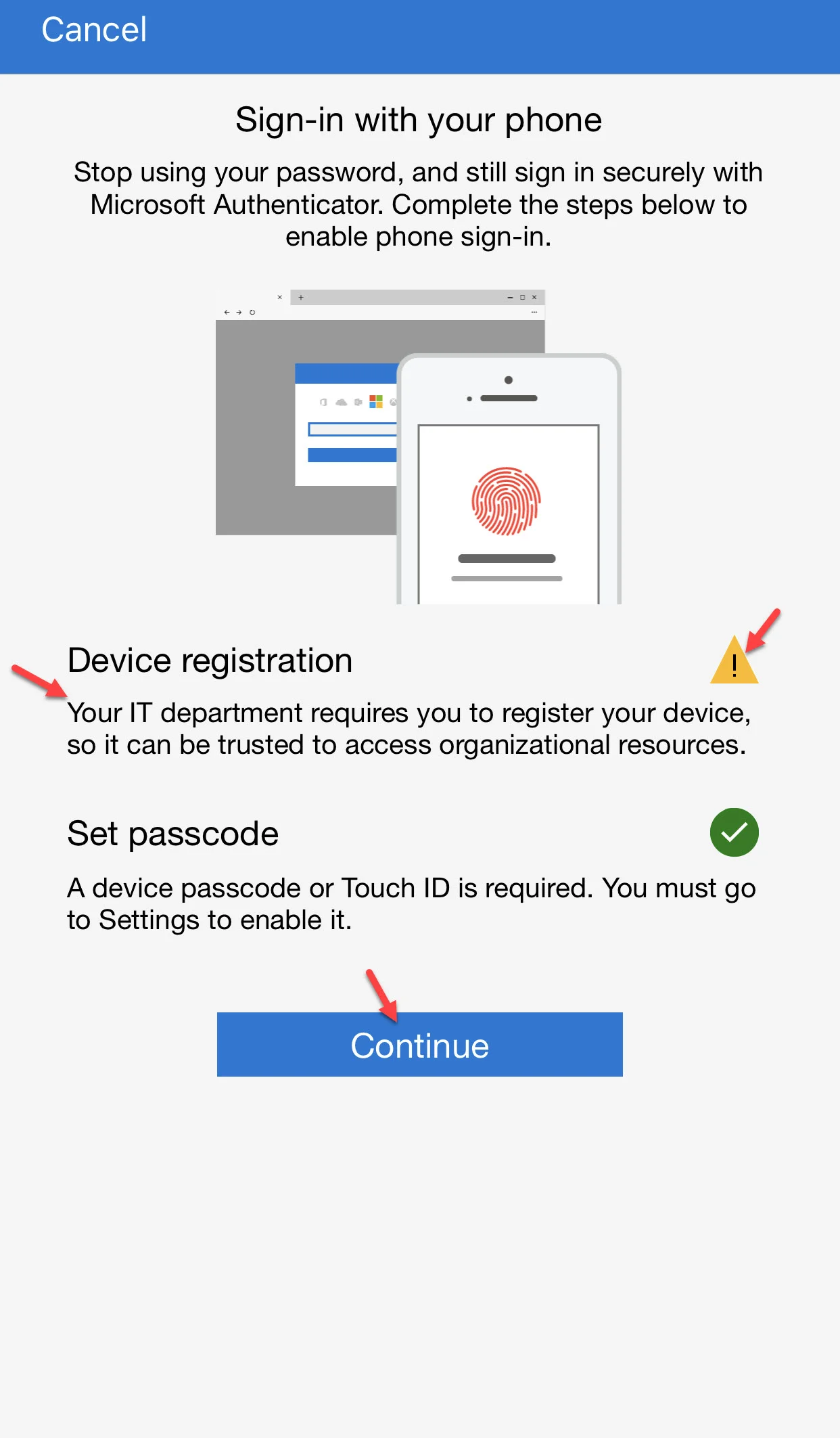
At that point, they will see a screen telling them about Device registration with a yellow exclamation next to it. Most users have a device passcode or Touch ID enabled on their phone already but if they didn't, they would be required to set it here to use this feature and would not be able to continue. Again, this password-less phone sign-in capability is a multi-factor authentication mechanism which means 2 factors minimum and there's no way to get around that for the user. Authenticator works with Azure AD to enforce this as you can see. They just need to hit Continue here:
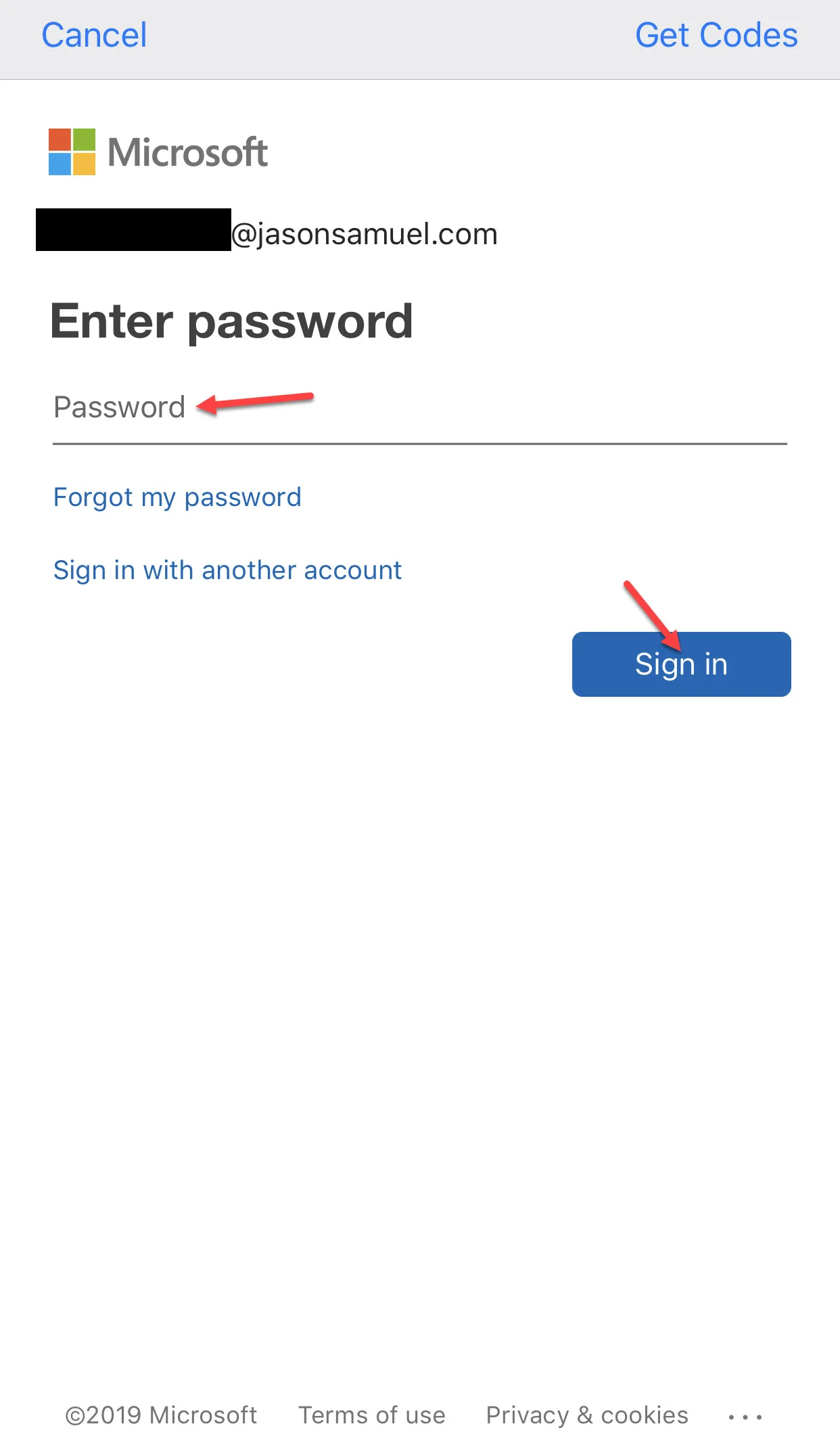
The next screen will require them to log in with their password (one last time) to complete the Device Registration:
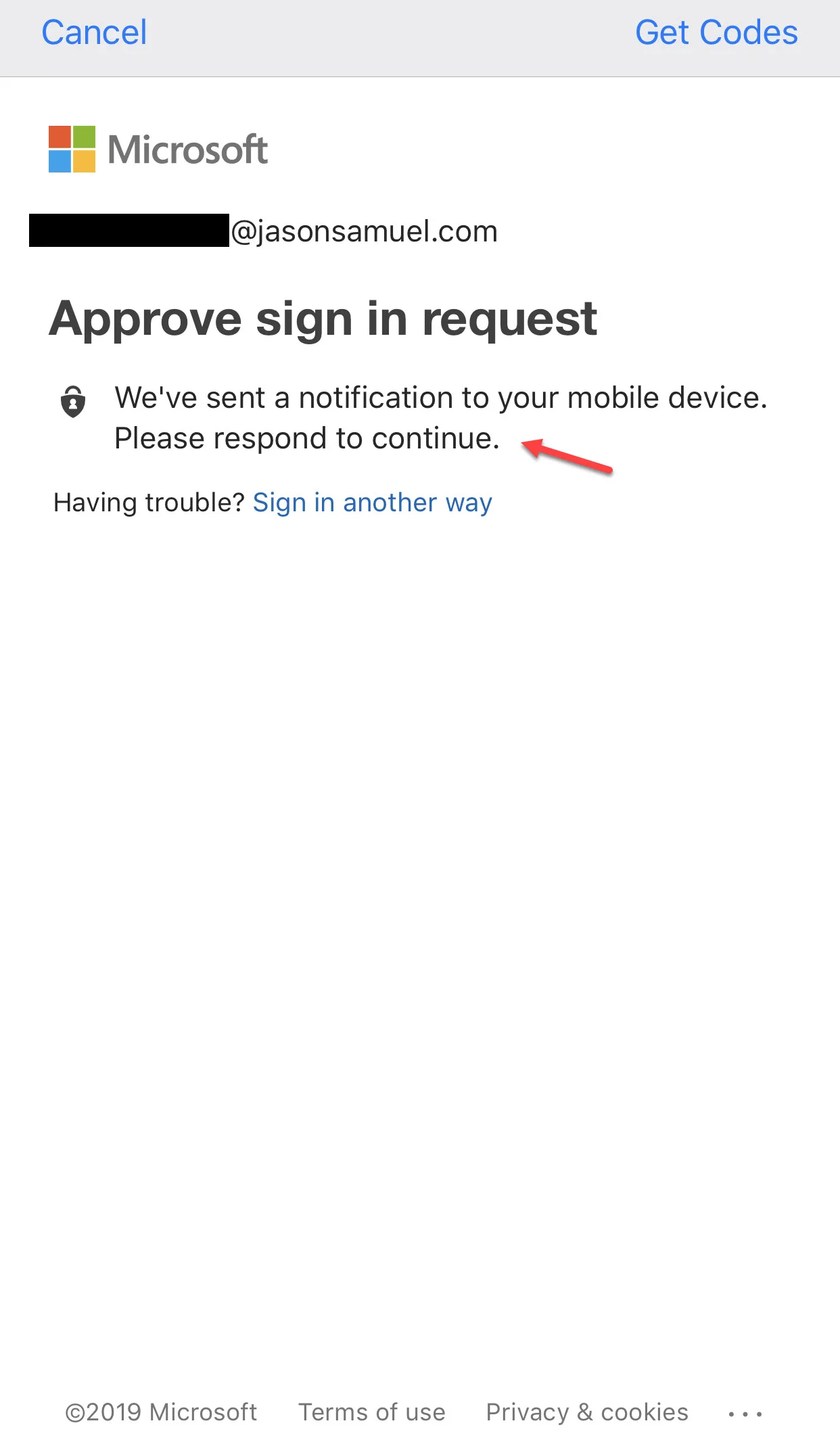
And one last traditional Azure MFA push notification if enabled:
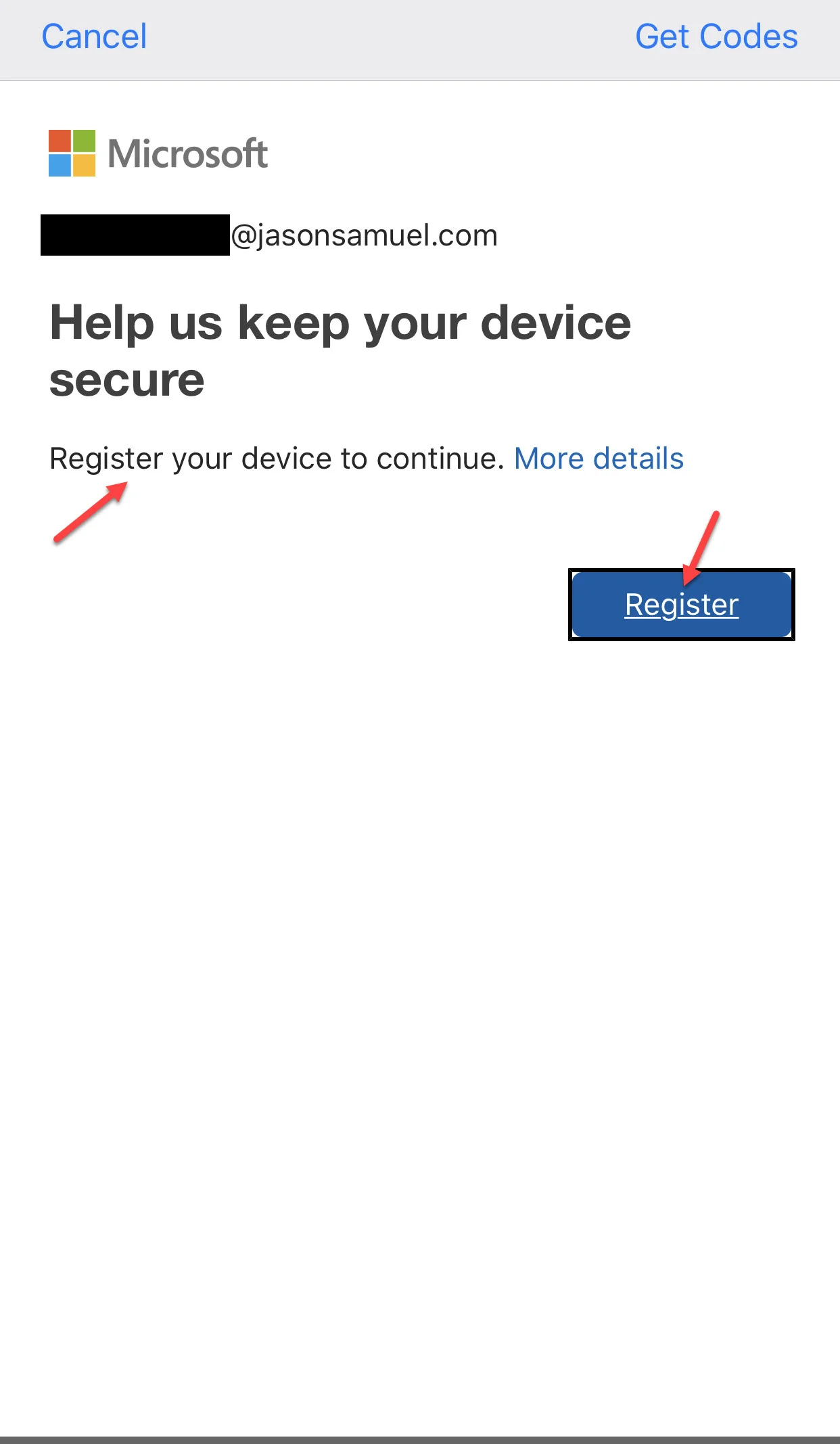
And finally, the Device Registration screen. Just hit Register:
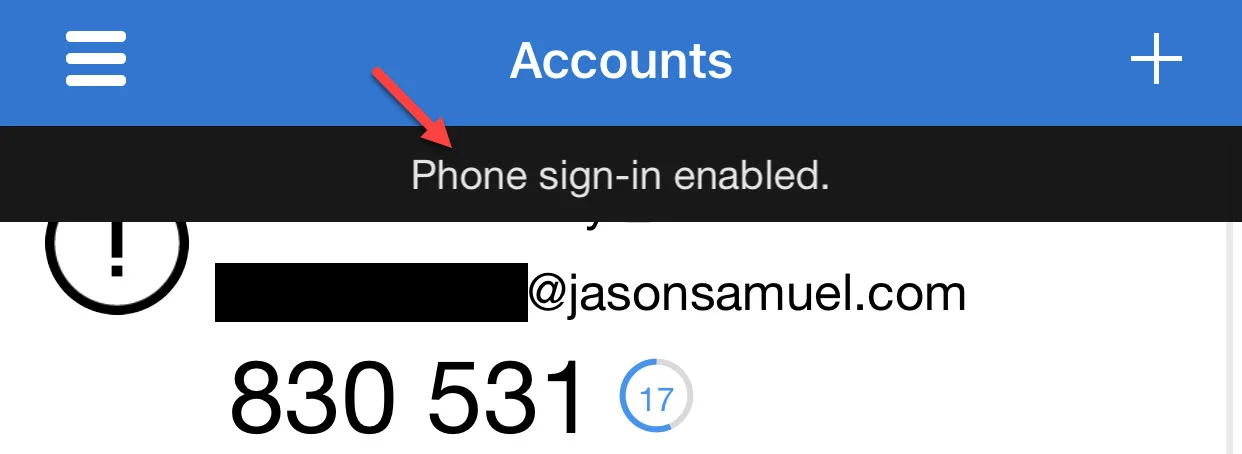
And they will be returned to the Authenticator home screen saying "Phone sign-in enabled.":
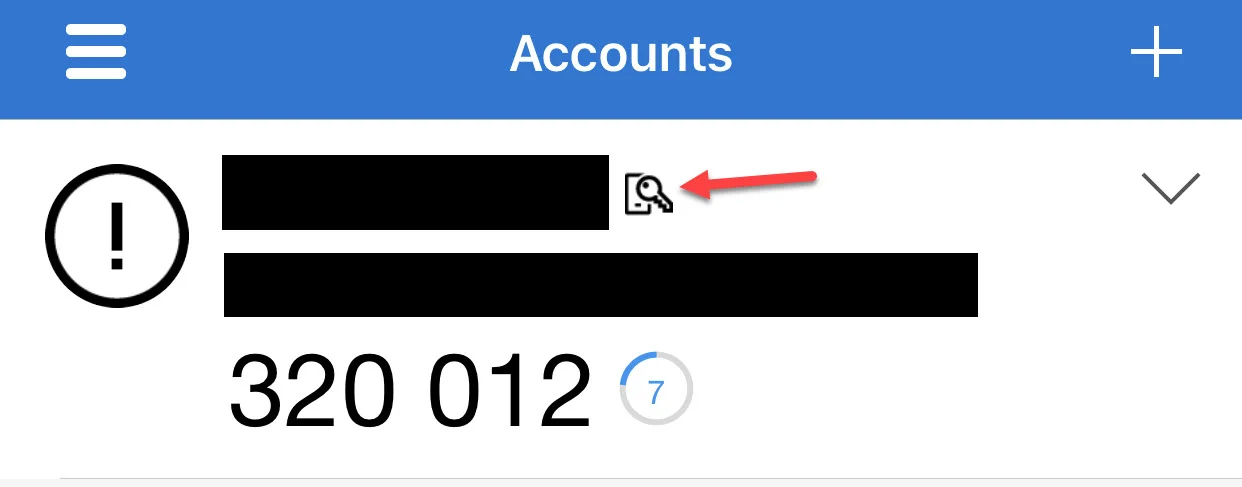
and they will see a little phone icon with a key on it like this:
- A user can only use password-less phone sign-in with 1 enterprise Azure AD tenant and 1 personal Microsoft account simultaneously. If you are a company with multiple Azure AD tenants, your users will need to un-register and register against the new tenant they want to use this feature on. This is common for testing against test tenants. This is very easy to do within the Authenticator app and takes seconds to flip between them like this.
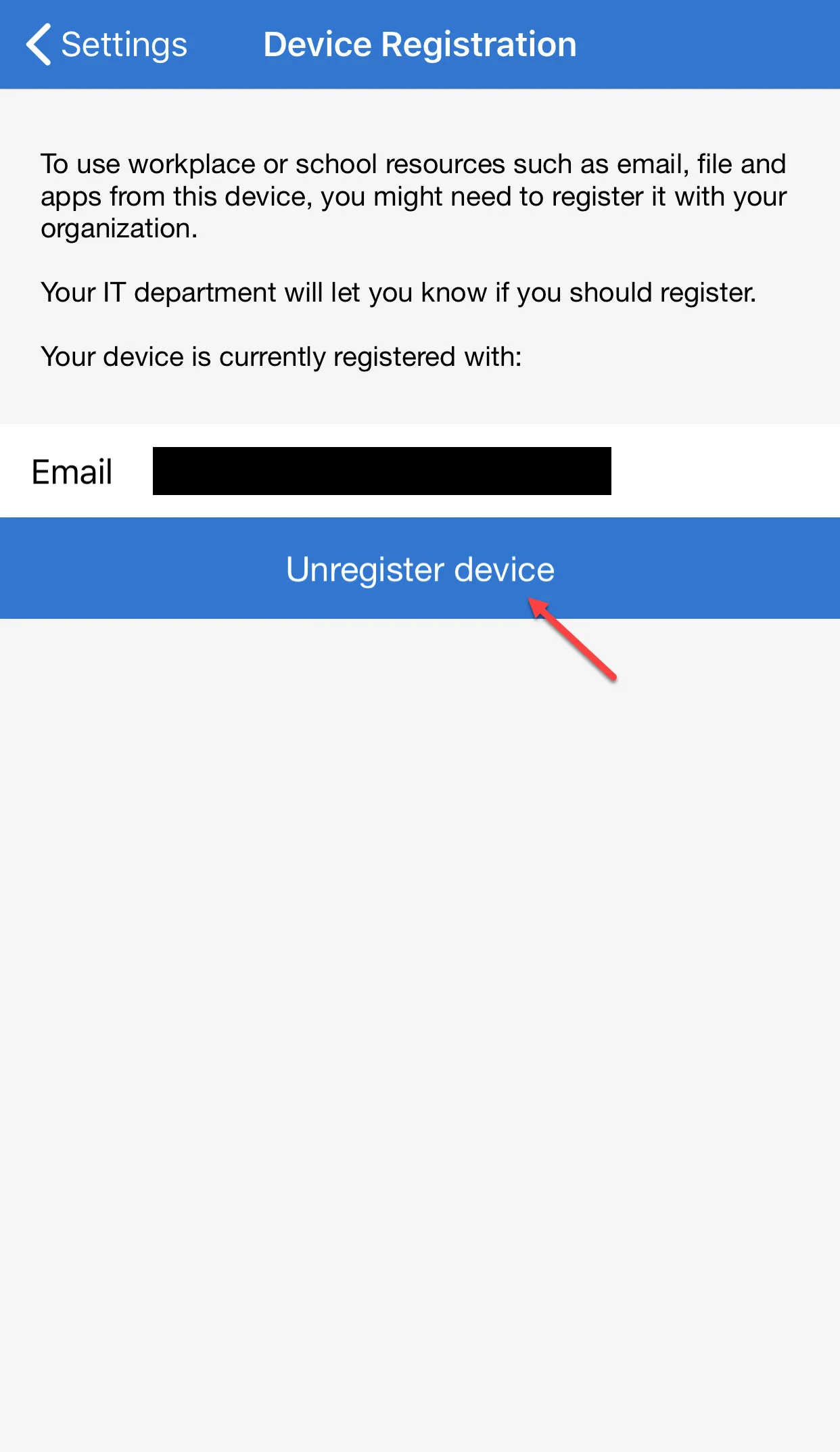
Just click the hamburger icon in Authenticator (3 lines in the top left) > Settings > Device Registration > Unregister Device. Click the red Continue button in the scary disclaimer and then they can go through step 7 to register against the tenant they wish.
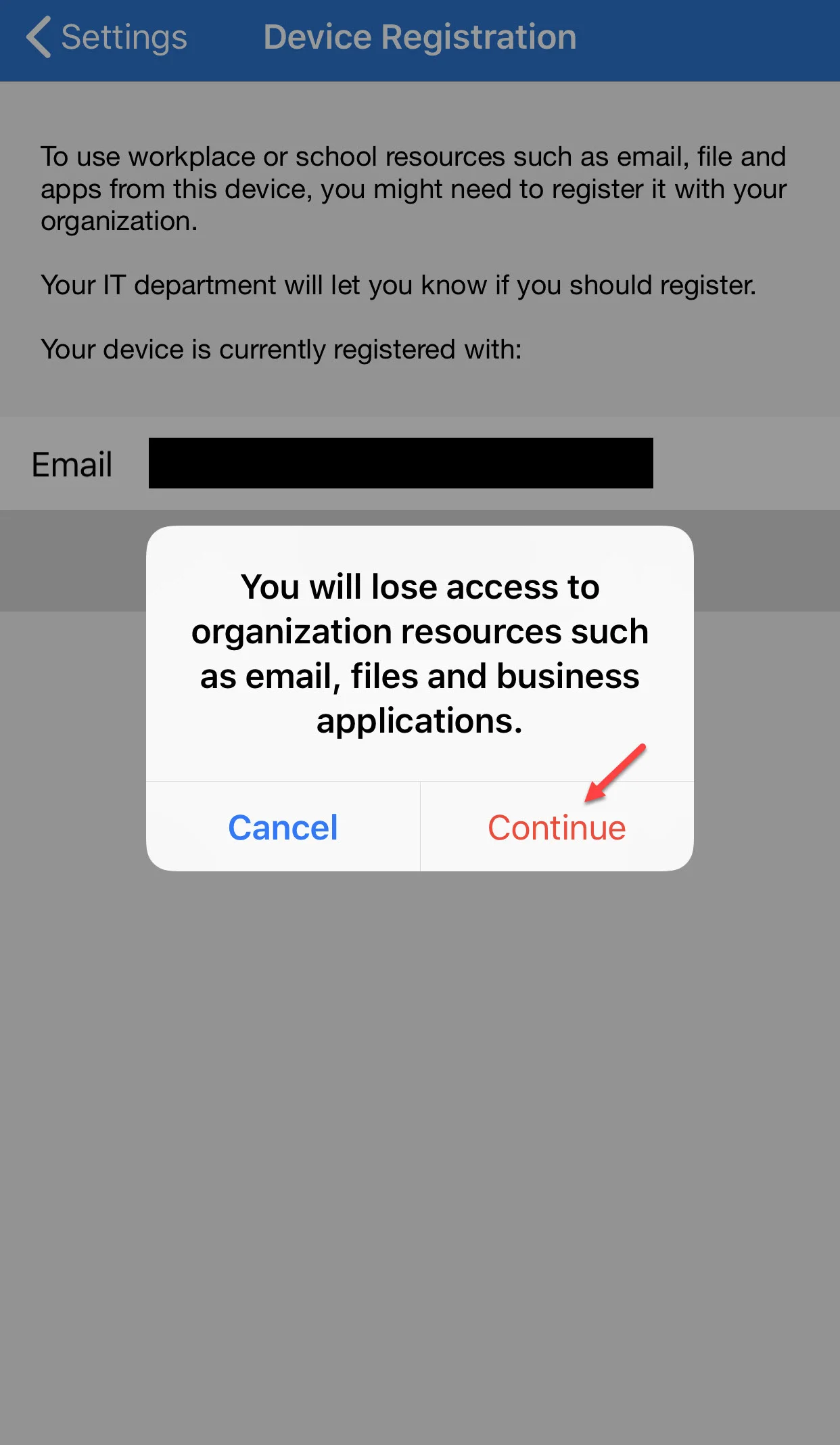
9. Once Device Registration is completed and phone-sign is enabled, you are ready to begin testing! You can log into https://outlook.office365.com as an easy test. First, you enter your email address (UPN) like normal:
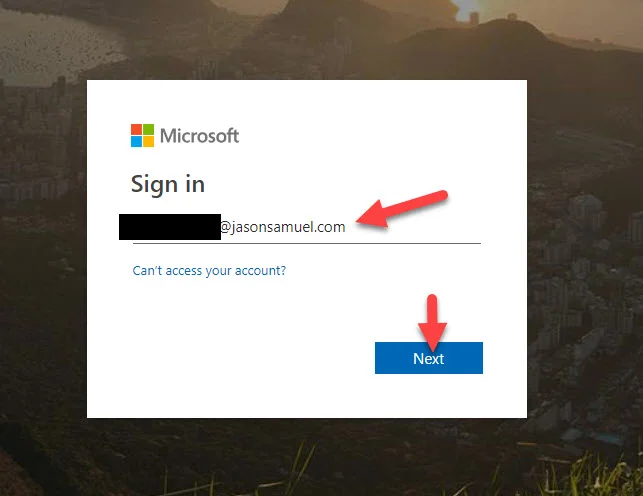
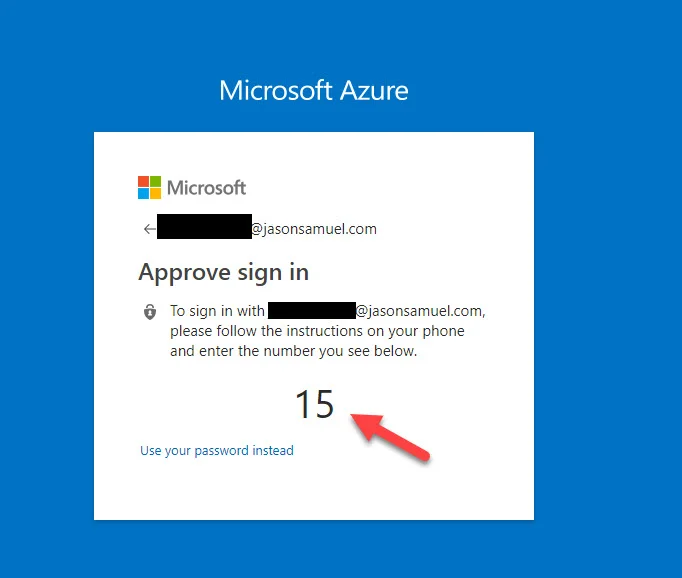
10. Then you will immediately see this number matching screen instead of your usual password box. There is also an option to "Use your password instead" for the typical login methods or redirect to AD FS if you are federating:
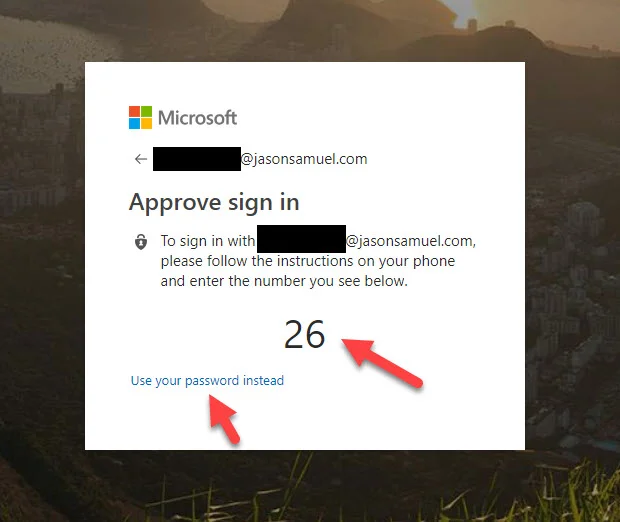
11. In the Authenticator app, you should see a pop up like this asking you to pick one of the 3 numbers. This proves you are the one initiating the session at that moment in time as an extra security measure. It will time out in 60 seconds if no response and the web browser will tell you that "Request timeout" is the reason for authentication failure. This type of verifying what's on your web browser with the app to prove it's you initiating the session is something most other traditional MFA mechanisms do not have the capability of doing today:
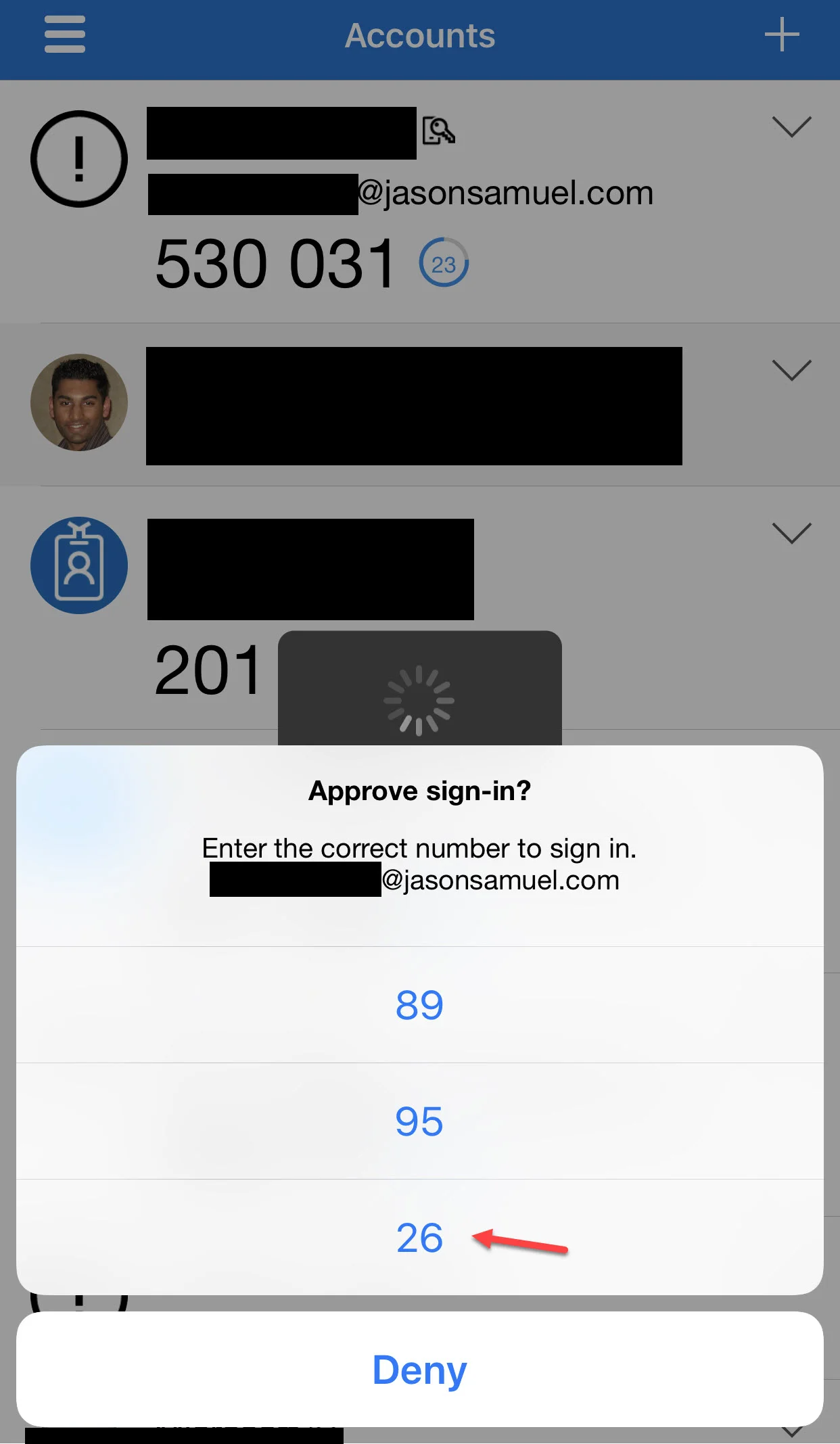
12. Once you hit the matching number, in my case above "26", the Authenticator app will then prompt for the 2nd factor that was enforced during the enablement of phone sign-in earlier. In my case, a Touch ID thumbprint is my biometric 2nd factor:
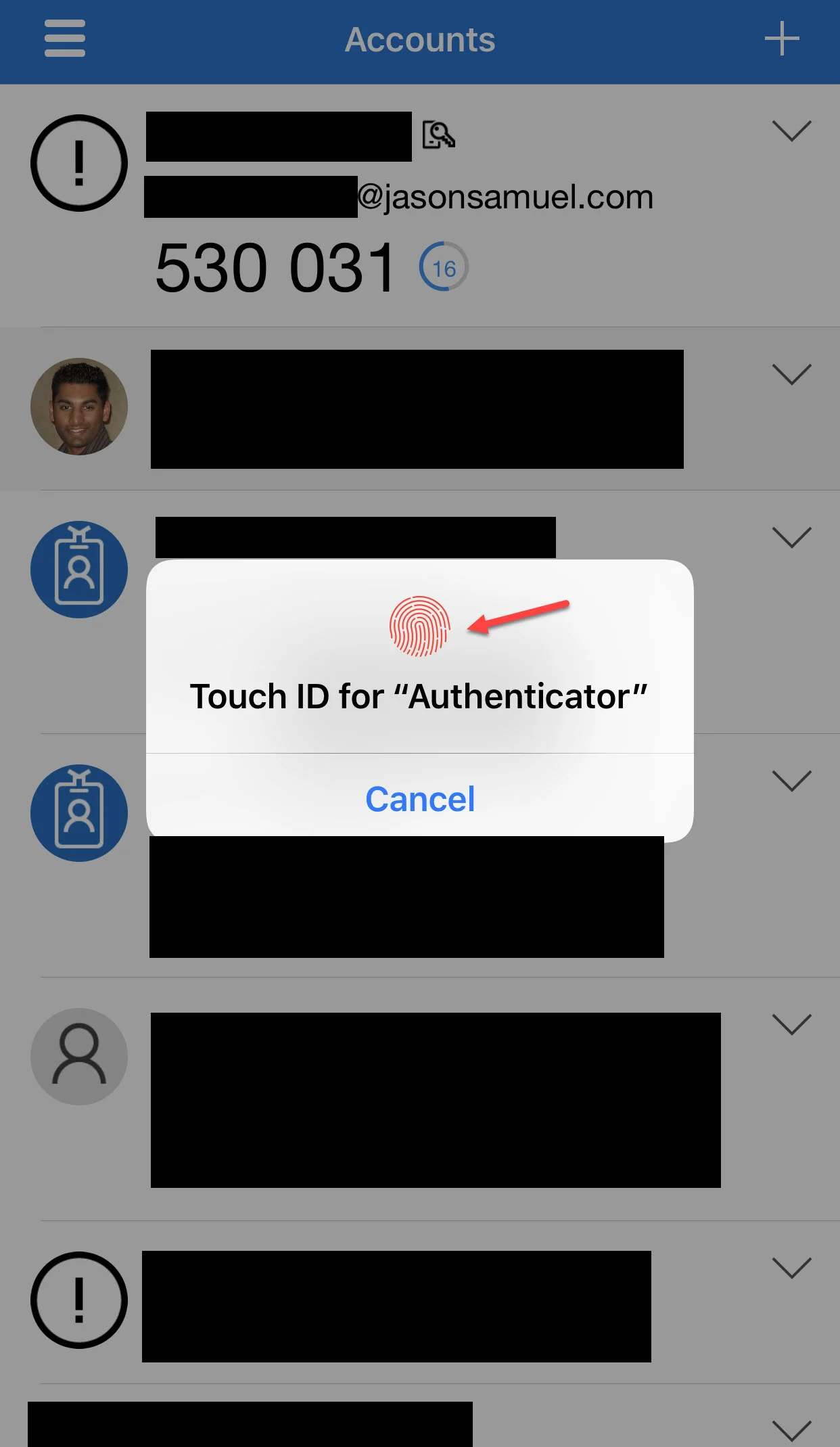
13. And that's it! You'll see this little "Approved" message along the top of Authenticator and you will immediately be logged into Outlook 365/OWA.

14. As a further test, you can test against other SaaS apps that are protected with Azure AD. You can also test against https://portal.azure.com if you wish. It will work the same way, just the blue background:
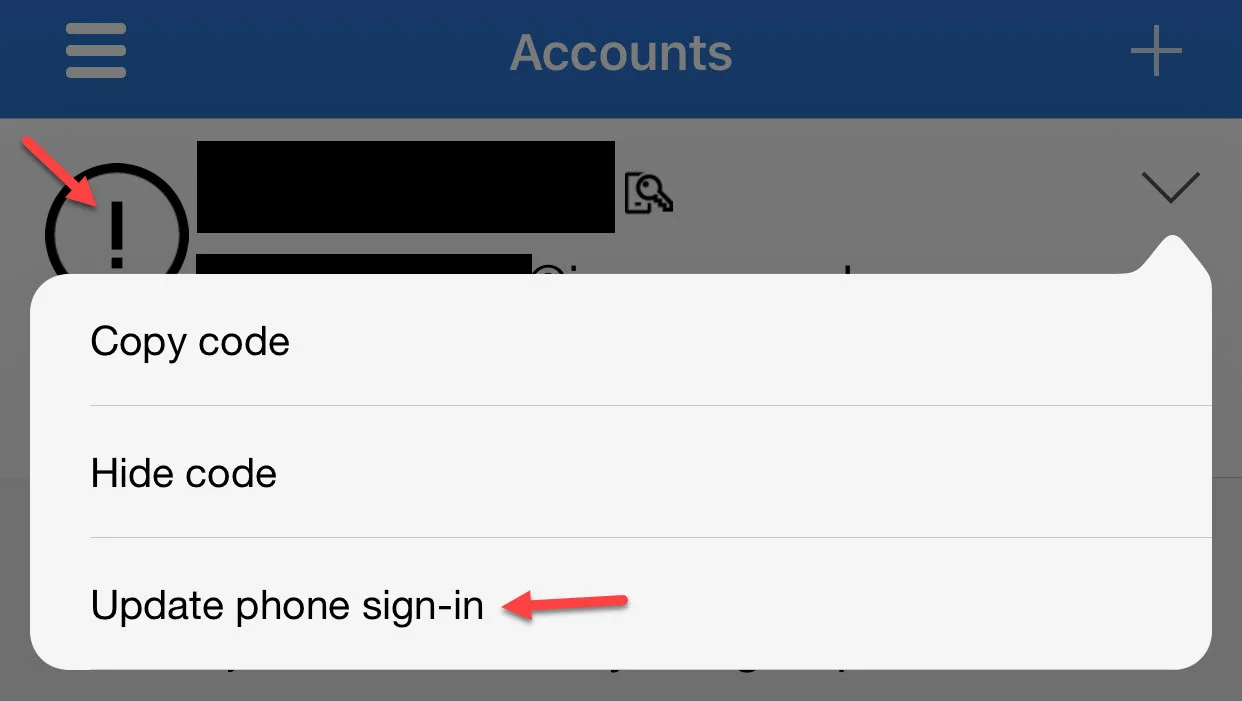
15. One thing to note, in my testing I was not getting push notifications of the number match from Authenticator on my iPhone lock or home screen like with regular Azure MFA push notifications. I had to open the Authenticator app itself to see the number match notification message. Sometimes I had to even drag down within the Authenticator home screen to check for new notification messages before it popped up. Or lock the phone and use my thumb to unlock which made it immediately pop up. If you notice in my screenshots above there is an exclamation mark for the avatar instead of the regular blue smartcard picture or headshot. If you click the arrow you will see an option to "Update phone sign-in" like this:
16. After which I got a prompt to "Upgrade your account" so I could enable additional notifications:
"Upgrade your account. For an improved experience when signing in without your password, we need to enable additional notifications for
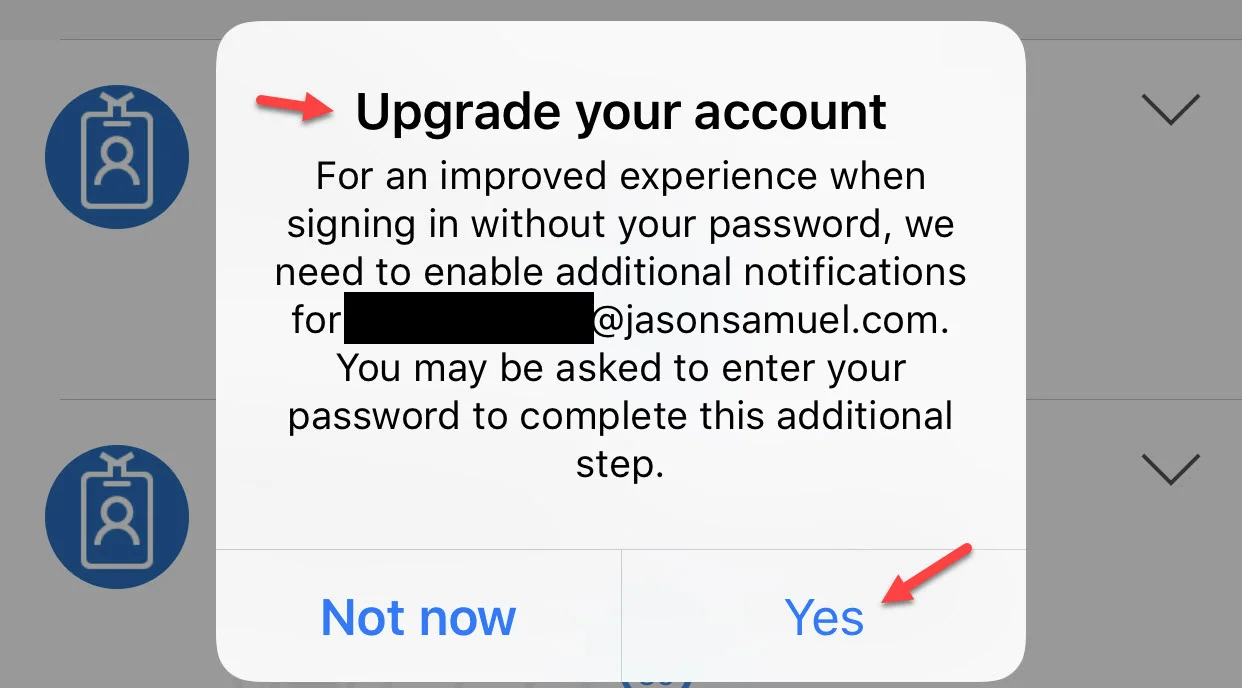
17. Unfortunately upon hitting "Yes" I was presented with an error message saying "Something went wrong. Please try again later.".
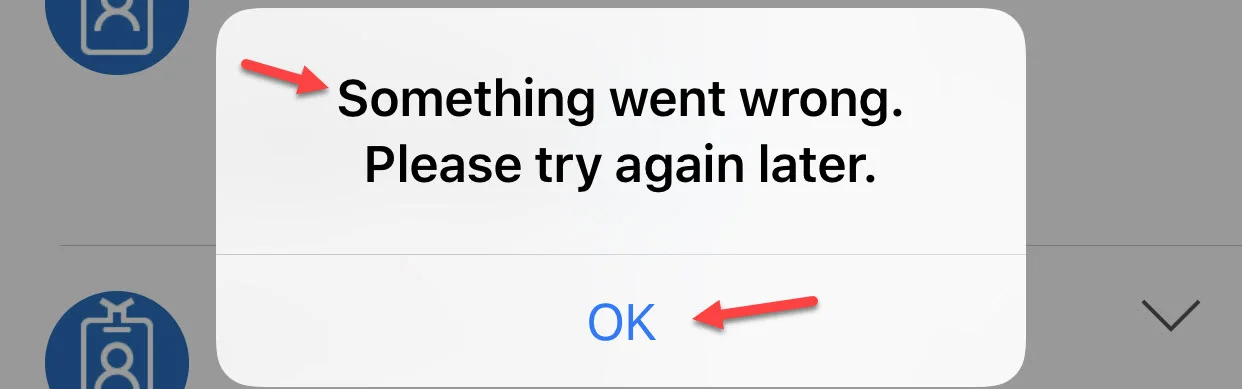
18. I initially thought this was because I was using Azure AD Free in this tenant so I upgraded to EMS E5 (Enterprise Mobility + Security E5) which gave me Azure AD P2. I still experienced this message. I went to this user account itself in portal.azure.com in Azure AD and I verified it had a Usage Location set and an EMS E5 license applied. Then unregistered fully and re-registered in Authenticator. I still experienced the same behavior. I could see my phone was "Azure AD registered" for the Join Type as well on this account. No Conditional Access policies restricting me in any way. I checked the Sign-Ins logs in Azure AD and spotted sign-in error code "500014" and for the failure reason it stated "Other". I'm thinking it may be something on my tenant as I do a lot of testing on this one. I need to do some more investigation into this but it's not really impacting any real functionality for me here. I am loving going password-less!
19. Remember how I said you can test this capability without impacting all your production users? I want to reinforce that on this bullet. To stop using this password-less phone sign-in capability for a user, all they have to do is unregister their device from phone sign-in like in step 8 above. Then they are back to normal using their password or being redirected straight to AD FS if you are federating the hybrid identity. They will no longer see the number matching screen after entering their email address. This means you can test this functionality with a small group of users if you like while the rest of your company continues using the regular way they are used to. When you are done testing you can simply ask them to unregister their device and they are back to normal.
20. BONUS!! If you're a Citrix Workspace fan, this password-less auth works great. Make sure you enable Azure Active Directory (Azure AD) in your Workspace Configuration. As you can see the authentication web view will pop up and show the number matching just fine:
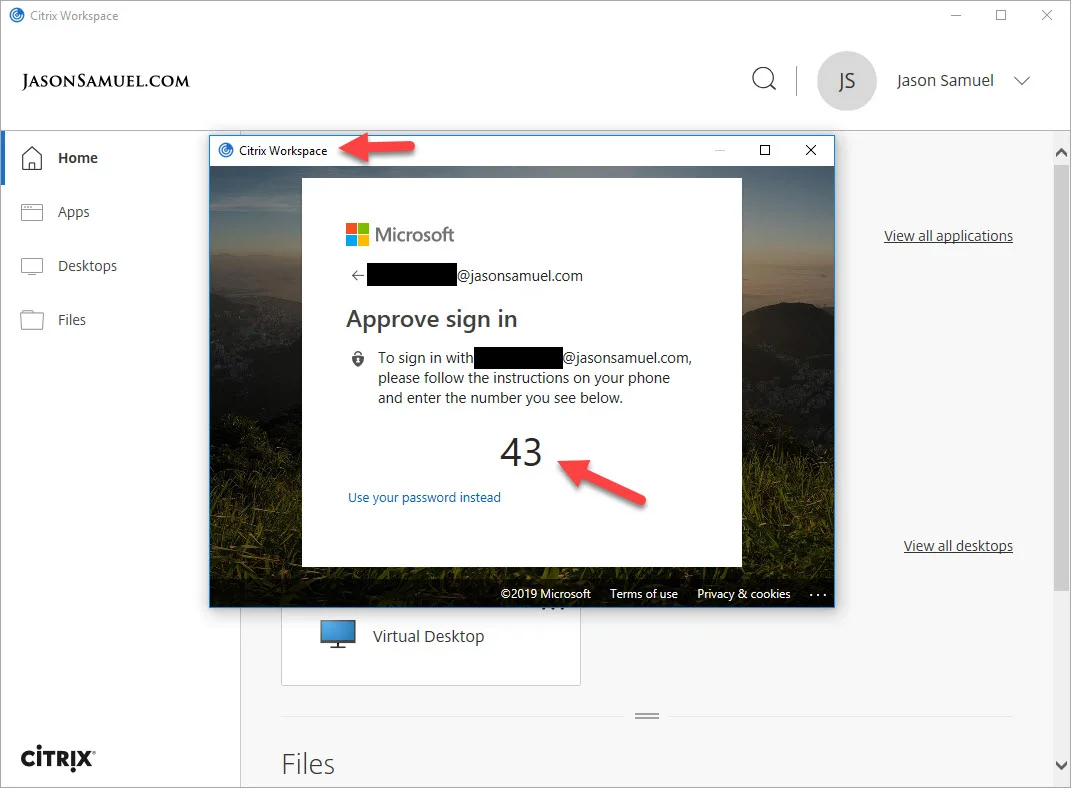
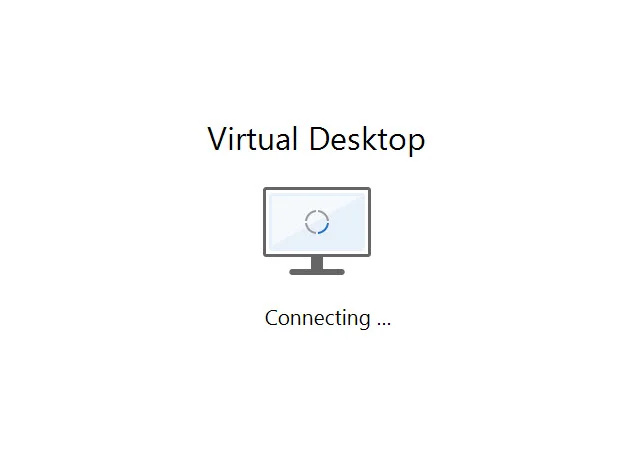
and once you launch a resource like a virtual desktop, wait for it...
A Windows 10 login screen asking for my password:
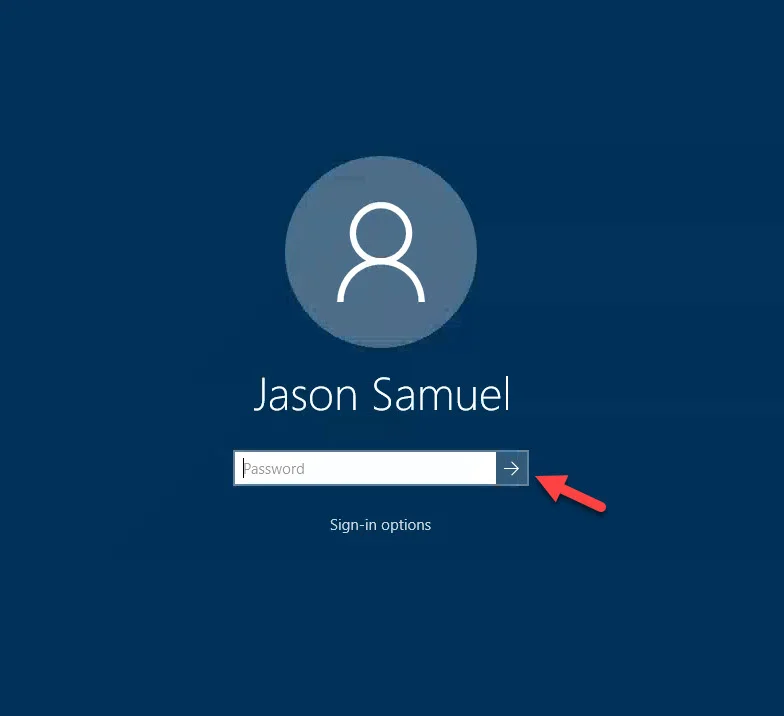
This is because Windows 10 can't understand modern web authentication and Citrix Federated Authentication Service (FAS) is necessary for single sign-on to work. It will convert the OAuth2 authentication token to a cert similar to how a physical smartcard would work so Windows can understand and use it for SSO. It's a middle-man to bridge modern auth with Windows OS constraints and I've written several articles on how to set it up. Workspace will be able to use FAS as per the Workspace roadmap here: https://www.citrix.com/products/citrix-workspace/roadmap.html
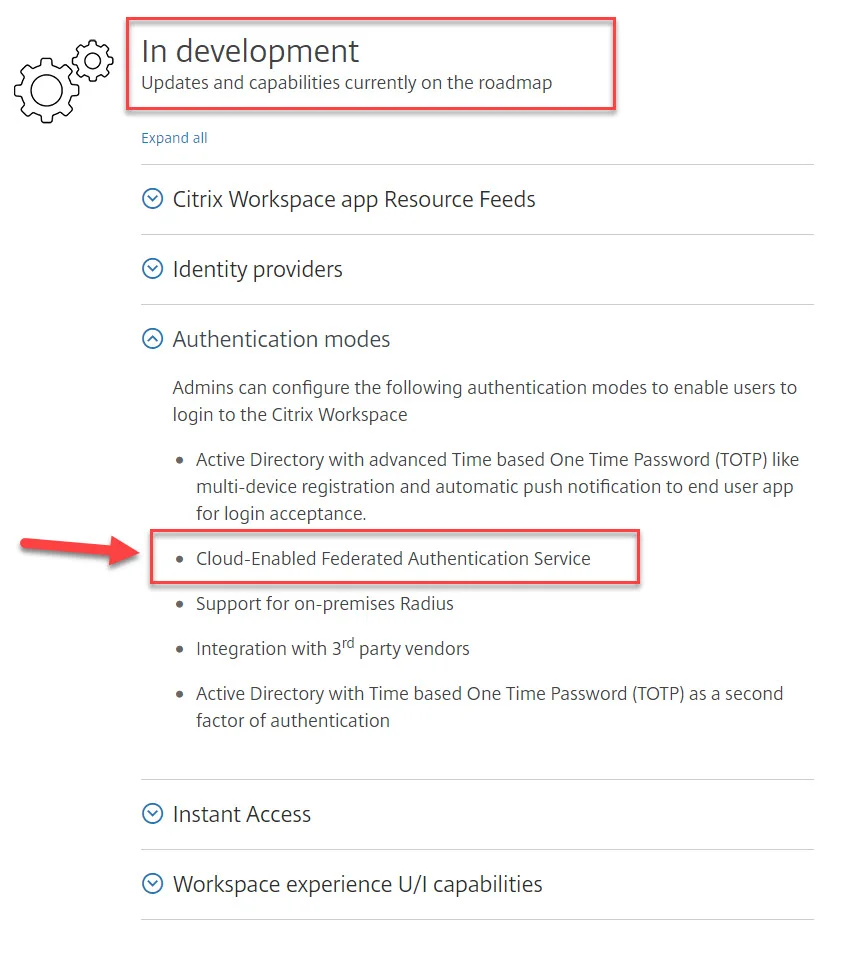
So for at least a little while longer, yes you have to use your password for launching Windows sessions over a remoting protocol like HDX but for regular web-based SaaS apps that understand modern auth, it's been an amazing experience not having to type in a password anymore! I don't ever want to go back to passwords! :)
I hope this quick guide has helped you understand how password-less sign-in with Microsoft Authenticator works. Look out for my next article where I will deep dive into why every company should be looking into moving to password-less authentication for their users. In the meantime, if you have any questions or comments please leave them below.

Jason Samuel
Product leader, advisor, and international speaker with 27+ years in enterprise end-user computing, security, and cloud. Has deployed infrastructure at Fortune 500 scale across 34 countries. 1 of 3 people globally to hold Citrix CTP + VMware vExpert + VMware EUC Champion concurrently. 200+ articles, 1,000+ reader discussions.
Previous Comments (12)


