
How to use Microsoft PowerShell and PsExec to change the RDS license server name on all your XenApp servers
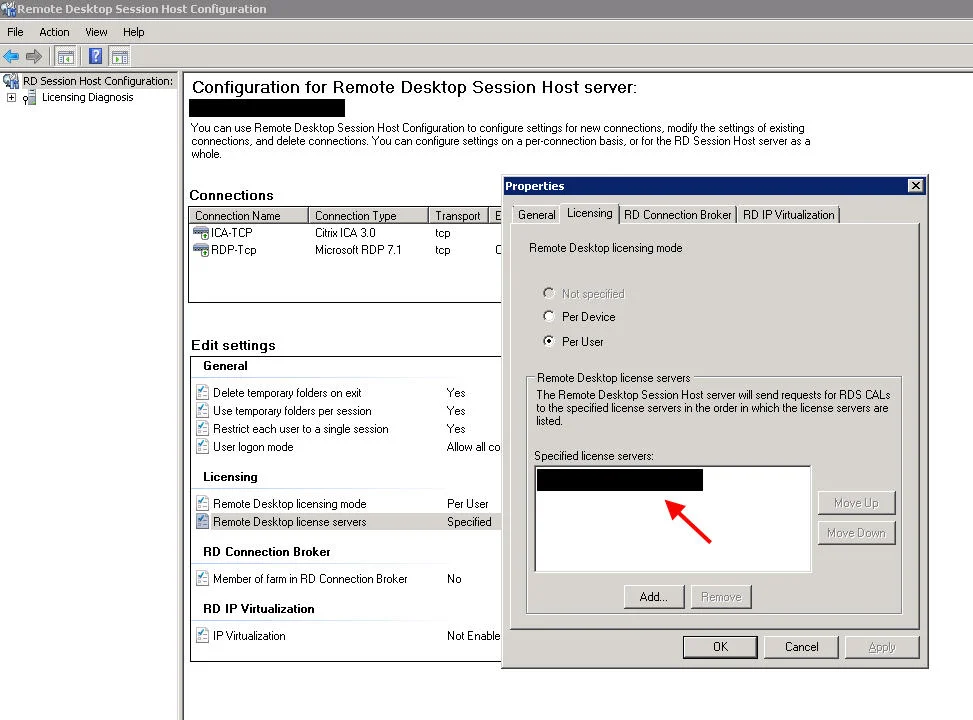
Let's say you decide to decommission your Remote Desktop Services (RDS)/Terminal Services Licensing Server or you moved your TS/RDS CALs to a different server. That means you need to change the name to the new server under Remote Desktop Session Host Configuration on all your XenApp servers.
This is a pain to do manually when you have several hundred XenApp servers. You can do it through group policy but you may only want to change it on a subset of servers in an OU and not all of them. So I used PowerShell and PsExec to precisely target all my XenApp servers I wanted to change. It's a very quick option when you are pressed for time.
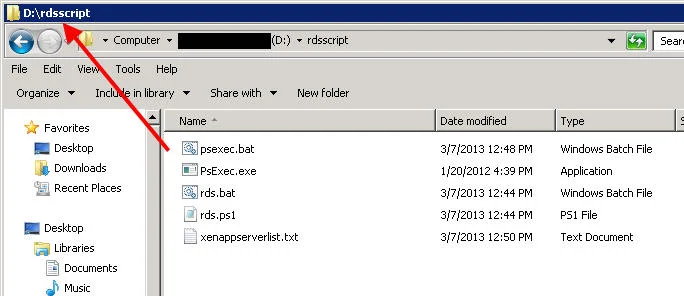
You'll need to create rds.bat and rds.ps1 and put them in "d:\rdsscript" on the server you plan to run the Powershell script from. You'll want to share out your "d:\rdsscript" folder on the server you plan on running the script from, otherwise you might get Access Denied errors because the script references a UNC path. The contents of these two files is below.
rds.bat contents:
powershell.exe -executionPolicy unrestricted -command "\\yourserver\rdsscript\rds.ps1"
rds.ps1 contents:
Import-Module RemoteDesktopServices
cd RDS:\
cd .\RDSConfiguration\LicensingSettings\SpecifiedLicenseServers
new-item –name newlicenseserver.yourdomain.fqdn
remove-item oldlicenseserver.yourdomain.fqdn -confirm:$false -recurse:$true
Modify the rds.ps1 script with the name(s) of the servers you want to add a the name(s) of the servers you want to remove. You can run rds.bat locally on a XenApp server as a test to see if it worked.
Now it's time to run it on all your XenApp servers remotely. You can use any number of delivery methods. Again I chose to use PsExec because it's quick and gets the job done. I highly recommend doing your dev, staging, etc. servers first before doing it in production.
Now copy PsExec.exe into the "d:\rdsscript" folder. You'll also want to create psexec.bat and xenappserverlist.txt now. Here are the contents of the two files:
psexec.bat contents:
psexec -s @xenappserverlist.txt "\\yourserver\rdsscript\rds.bat"
pause
xenappserverlist.txt contents:
XenAppServer01
XenAppServer02
XenAppServer03
XenAppServer04
XenAppServer05
So your shared directory on the server you plan on running the script from will look something like this:
Now just double click on psexec.bat and it will run the script on each of your XenApp servers in the list. The "-s" tells psexec to execute as the local system account so you don't have to put your username and password in the script. I don't like to put usernames and passwords in the script because doing that would send it across the network in plain text so it may be a security concern.
Hope this helps. Let me know if you have any other methods to accomplish an RDS license server migration quickly. I'm always looking for more options. :)

Jason Samuel
Product leader, advisor, and international speaker with 27+ years in enterprise end-user computing, security, and cloud. Has deployed infrastructure at Fortune 500 scale across 34 countries. 1 of 3 people globally to hold Citrix CTP + VMware vExpert + VMware EUC Champion concurrently. 200+ articles, 1,000+ reader discussions.