
Publishing Microsoft IE via Citrix in full screen kiosk like mode and retaining the X button to close
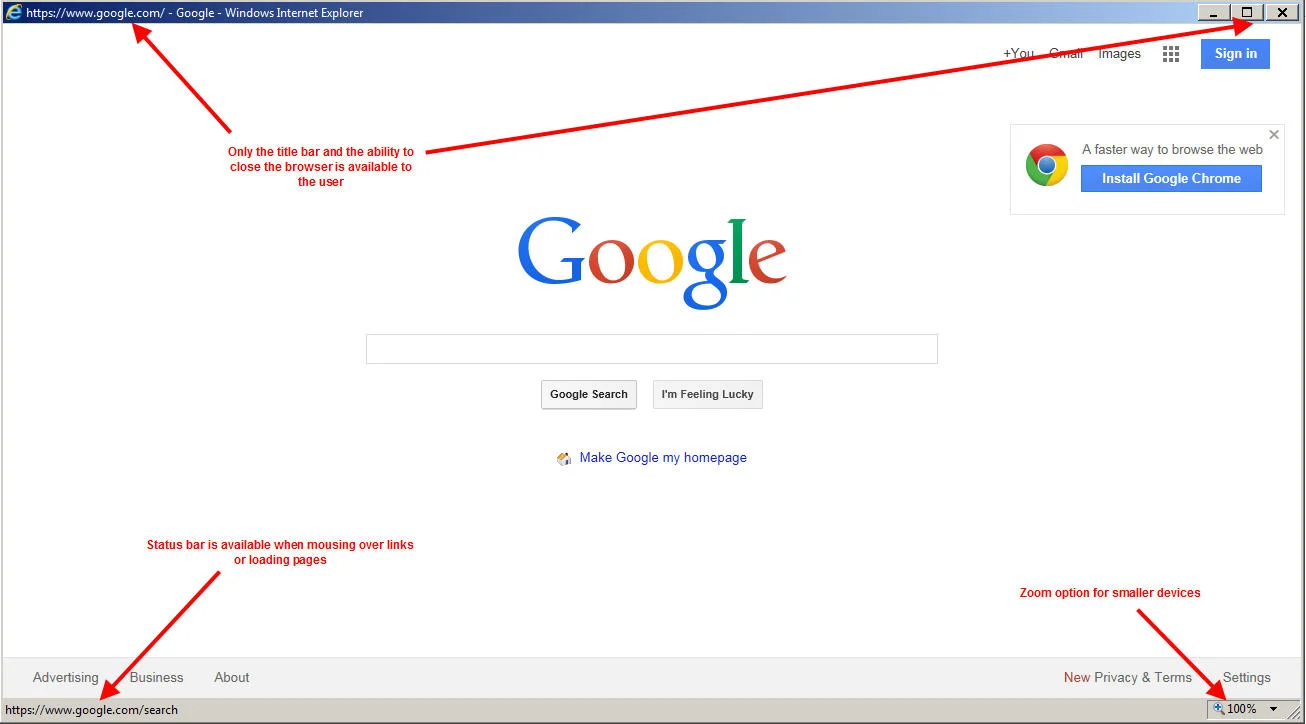
I've written about staying away from publishing IE via Citrix if you can help it in many articles before. It's a pain to do all the hardening that comes with publishing a browser. If you don't lock it down, users will go nuts opening up all sorts of tabs through it thinking it's their desktop browser and your XenApp servers are going to be overloaded with runaway processes. All it takes is a handful of users streaming video on Youtube to see an impact on your CPUs. Or something more serious, how about the user that manages to browse to a site that's injecting malware via the latest Java exploit? You have to do all sorts of hardening at the OS and network level to really lock it down. It's much easier to just publish a URL as content and let the client browser take over so you don't have to deal with the headache.
But in some instances, you have no choice but to publish a browser. One of the most common examples is a web application that uses a specific legacy version of Java. You don't want your users to run old versions of Java on their PCs and be vulnerable and incompatible with newer web apps so you run it on a XenApp server instead minimizing your attack vectors. Lock down the server at the network level to just the websites you want to get out to. Use a web proxy. Stick it on a secure VLAN. Heck, edit the server's local host file and create a DNS black hole if that's all you can do in a pinch. Do whatever you can to prevent them from getting out to some malicious website looking for browser exploits and open up a world of trouble for you.
As far as the locking down the IE browser itself, one thing you can do is publish it in kiosk mode:
"C:\Program Files (x86)\Internet Explorer\iexplore.exe" -k http:\\www.google.com
This will launch IE in full screen with no buttons, tabs, status bar, address bar, title bar, etc. This is perfect for a kiosk but not so much when published to regular and mobile devices. Users want the ability to be able to hit an X button to close the browser. They're not going to know they have to hit Alt+F4 to exit out of kiosk mode.
The solution is to write a little VBS script and control every aspect of the browser. Here is an example of one of my scripts:
Set objExplorer = CreateObject("InternetExplorer.Application")
objExplorer.Navigate "http://www.google.com"
objExplorer.ToolBar = 0
objExplorer.StatusBar = 1
objExplorer.Left = 0
objExplorer.Top = 0
objExplorer.Visible = 1
I just publish it as:
wscript.exe "D:\Citrix Published Website scripts\Google.vbs"
and it will work just fine as a published app. Just remember, on Server 2008 R2 this is going to launch the 64 bit version of Internet Explorer because you're calling on the 64 bit version of the Windows Script Host. You will likely want the 32 bit version for Java and other Addons to work. So publish it like this for 32 bit IE using the 32 bit Windows Script Host:
C:\WINDOWS\SysWOW64\wscript.exe "D:\Citrix Published Website scripts\Google.vbs"
Leave the working directory as the location of your scripts:
D:\Citrix Published Website scripts
You'll notice I only allow the the title bar and status bar with this script but you can do anything you like.
You can even control the window size by just adding a couple of lines:
objExplorer.Width = 1024
objExplorer.Height = 768
Hope this helps someone! UPDATE: One of my co-workers let me know if you publish this on a Server 2012 R2 / IE 11 box, you may need to add:
On Error Resume Next
to the top of the VBS script or you might get a Windows Script Host popup with error 80004005 "unspecified error" or 80010108 "the object invoked has disconnected from it's clients" error. I found an even easier solution which is to simply move the:
objExplorer.Navigate "http://www.google.com"
line to the very bottom of the script. No more Windows Script Host errors after that using Internet Explorer 11. Hope this helps! UPDATE 2: Here's a more robust script I found by a gentleman named "Paul T" that checks the screen size of the session. This comes in very handy with Virtual Desktop sessions. I've made a few small modifications to make it iPad friendly:
Set objArgs = WScript.Arguments
If objArgs.Count = 0 Then
	WScript.Echo "No URL provided, please supply a URL to open" & VbCrLf & VbCrLf & "e.g. CScript OpenURL.vbs http://www.google.com"
	wscript.quit
End If

Set objIE = CreateObject("InternetExplorer.Application")

With CreateObject("internetexplorer.application")
   .navigate "about:blank"
   With .document.parentWindow.screen
     iHeight = .height
     iWidth = .width
   End With
End With

objIE.StatusBar = False
objIE.Visible = True
objIE.AddressBar = False
objIE.MenuBar = False
objIE.ToolBar = False
objIE.Top = 0
objIE.Left = 0 + 8 'Move to the side just a bit to show the desktop
objIE.Width = iWidth - 16 'Shrink to let a bit of the desktop show on the sides
objIE.Height = iHeight - 28 'Shrink a bit to see the taskbar
objIE.Navigate (objArgs(0))
just name this script OpenURL.vbs and invoke it via command line like this:
OpenURL.vbs google.com

Jason Samuel
Product leader, advisor, and international speaker with 27+ years in enterprise end-user computing, security, and cloud. Has deployed infrastructure at Fortune 500 scale across 34 countries. 1 of 3 people globally to hold Citrix CTP + VMware vExpert + VMware EUC Champion concurrently. 200+ articles, 1,000+ reader discussions.
Previous Comments (12)


