
Changing SQL account name, password, or database server name in XenApp 6.5
If you need to change the SQL server name, account, or password on a XenApp 6.5 farm, dsmaint config updates the mf20.dsn connection without breaking IMA.
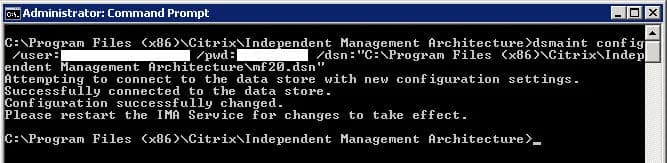
If you have a Citrix XenApp environment and change your SQL server, you will need to edit your mf20.dsn with the new server name. Located at:
C:\Program Files (x86)\Citrix\Independent Management Architecture\mf20.dsn
If you changed your SQL credentials, you will need to specify the new user name as well here. If you just change the password only and nothing else, you don't need to edit your mf20.dsn file. But you will still need to set the new password or the IMA Service won't start.
Once you make whatever changes you need to the mf20.dsn or not if it's just a password change, do the following:
- Go to Services and stop the IMA service (Citrix Independent Management Architecture) if it is still running.
- Open command line and Navigate to:
C:\Program Files (x86)\Citrix\Independent Management Architecture
- Type:
dsmaint config /user:yourdomain\youraccount /pwd:yourpassword /dsn:"C:\Program Files (x86)\Citrix\Independent Management Architecture\mf20.dsn"
- Restart the IMA Service
- You can also recreate the local host cache database (LHC database) if you have issues starting the IMA service after this. Type:
dsmaint recreatelhc
then restart the IMA Service. It will populate the cache immediately with info from the datastore.

Jason Samuel
Product leader, advisor, and international speaker with 27 years in enterprise end-user computing, security, and cloud. Has deployed infrastructure at Fortune 500 scale across 44 countries. 1 of 3 people globally to hold Citrix CTP + VMware vExpert + VMware EUC Champion concurrently. 220 articles, 1,000+ reader discussions.
Previous Comments (8)


How to extend your on premises XenApp XenDesktop environment to Citrix Cloud XA XD Service and Microsoft Azure
There are a lot of misconceptions about what Citrix Cloud actually is. Here's how to extend your on-prem XenApp/XenDesktop to Citrix Cloud and Azure using Cloud Connectors.
citrix-xenappHow to publish content and use custom icons in XenApp XenDesktop 7.11 using PowerShell
XenApp/XenDesktop 7.11 lets you publish content (documents, URLs) with custom icons via PowerShell. Here are the exact cmdlets to deliver content shortcuts to your users.
citrix-xenappHow to setup Citrix Director Shadowing with Microsoft Remote Assistance using Group Policy
If you want help desk to shadow XenDesktop VMs from Director using Remote Assistance, you'll need Group Policy configured and Director 7.6.100. Here's the setup.