
If you've ever used Urchin 6 for web analytics (Google's pay for version of Google Analytics aimed at enterprises), you have probably seen profiles stuck in a "Running" state. If you hit Run Now, you get this error message:
12008 - Action: Failed to cancel urchin process.
If you try to reschedule the profile, you get this error message:
12007 - Action: Failed to add profile to the scheduler queue. The profile is already in the queue.
This happens because Urchin's scheduler is very sensitive to server reboots. If you have jobs scheduled to run at night and let's say you push patches to the server and reboot in the middle of the night, it can cause this error to appear on some of your profiles. You get these errors because the log processing engine and scheduler never received the proper exit signals which means there will be database entries in the MySQL database that will be in an inconsistent state. When the server boots back up, the log processing engine cannot pick back up where it stopped and the web GUI will show the profile is "Running" even though it is not.
The quick solution for this is to navigate to your Urchin bin folder via command prompt. Here is an example path: C:\Program Files\Urchin6\bin then type:
urchinctl stop
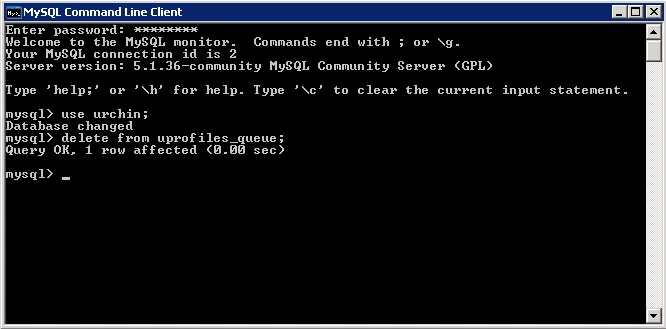
which will stop all Urchin processes. Then open up MySQL Command Line Client and type:
use urchin; delete from uprofiles_queue;
This switches the database to the urchin database and deletes all running profiles. Now if you go to to the web GUI under Profile Task Scheduler, you will see everything looks normal. Now trying running the job again and it should work. You should get a message saying:
12009 - Action: Profile has been queued to run. Please check the Profile Task History screen for status and runtime output.
Now don't forget to restart your Master and Slave scheduler services or the job will remain in a queued state until they are back up:
urchinctl start
Now verify the job is actually running properly by clicking the green "Running" link for the job and you should see it processing the logs.

Jason Samuel
Product leader, advisor, and international speaker with 27 years in enterprise end-user computing, security, and cloud. Has deployed infrastructure at Fortune 500 scale across 44 countries. 1 of 3 people globally to hold Citrix CTP + VMware vExpert + VMware EUC Champion concurrently. 220 articles, 1,000+ reader discussions.
Using Microsoft LogParser to create a report of who has been hitting a web page or URL
Need to know who's been hitting a specific URL? LogParser queries your IIS W3C logs and gives you every IP in chronological order. Then you can export unique IPs for identification.
iisUsing the DATAGRID output option in Microsoft LogParser to see error 500 IIS issues
LogParser's DATAGRID output gives you IIS error 500 results and page load times in a readable GUI window. No CSV exports needed. Instant visual output.
iisHow to get the IUSR and IWAM user account passwords on a Microsoft IIS server
If you need the IUSR or IWAM password without resetting it, Adsutil.vbs in C:\Inetpub\AdminScripts will retrieve it for you. Quick and non-disruptive.