
How to handle Citrix configuration changes for Citrix teams with many Citrix Admins
If you've got multiple admins making changes to your Citrix environment, you need configuration logging. Here's how to enable the built-in audit trail in XenApp.
When was this app published and who did it? We've all been in this situation before. We don't know where the app came from or who published it and have to go through change tickets and emails to track down where it came from. In very large dynamic Citrix environments with many Citrix Admins working on things, this can become a challenge. Citrix change tracking is vital. One sometimes overlooked feature of XenApp is that it has built in configuration logging. Any time a Citrix Admin makes a change it gets written to the database where it can be reported on. On XenApp 6.5 and older you have to create a separate database for this. With XenApp 7.5 you don't, it will all get written to the same database that your delivery controller configuration is in.
Here's a quick run down on how to get it working for XenApp 6.5 (with XenApp 7.5 it's automatically turned on):
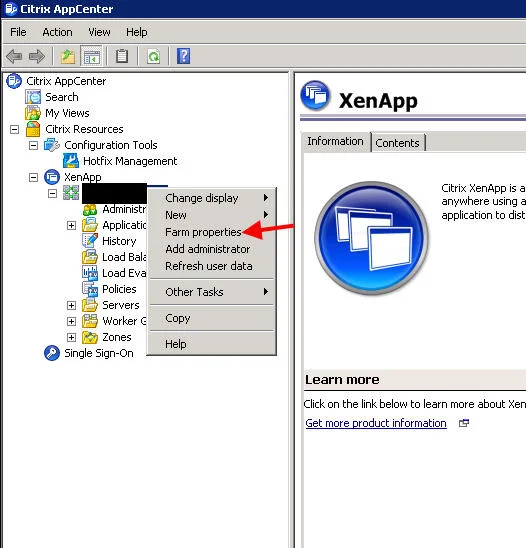
- Go to AppCenter and right click your farm. Then hit Farm properties:
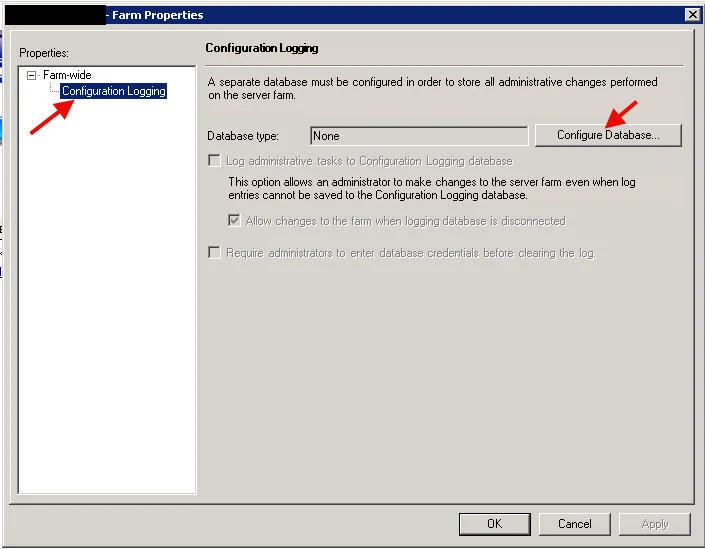
- Click Configuration Logging in the properties bar and click "Configure Database"
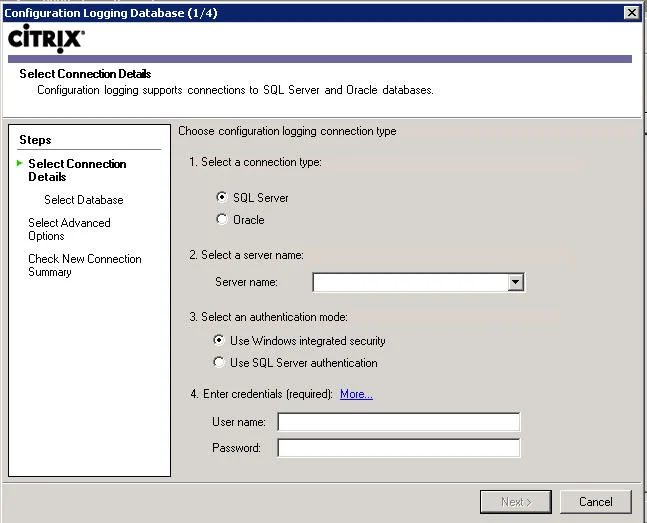
- Type in your SQL Server name and service account user credentials. And yup, you can use an Oracle database if you choose to.
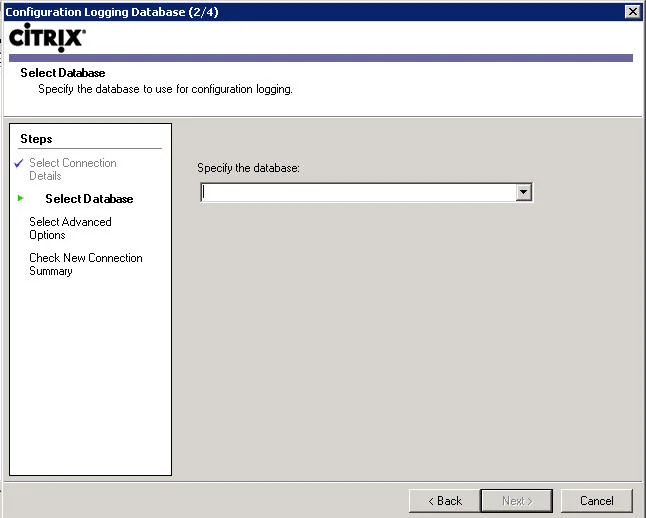
- Type in a database name. I am assuming you have had your DBA create an empty database for you already.
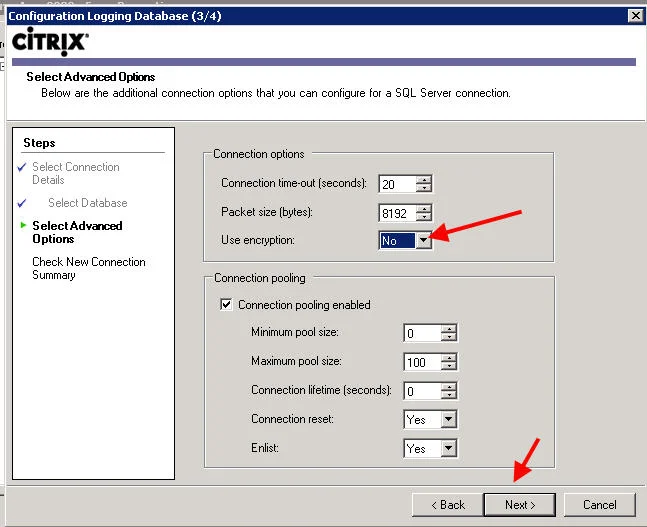
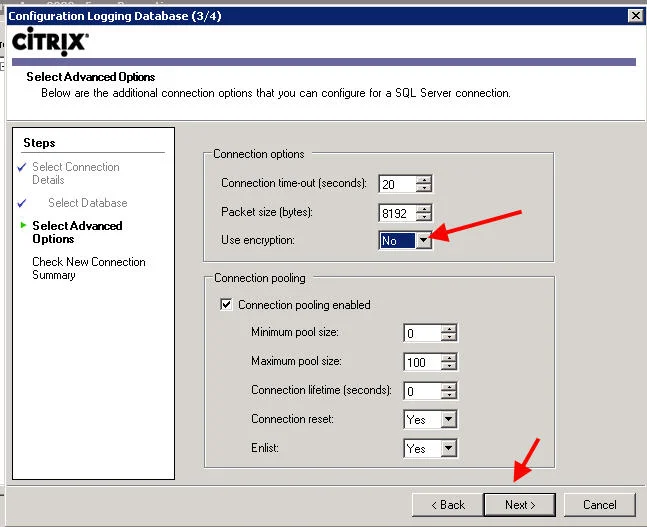
- Leave all the advanced options default except for "Use encryption". Set this to No. In most environments you are not going to be using SSL to connect to your SQL environment. If you leave it set to Yes you will get an error saying something like this later when you attempt to test the connection: *Failed to connect to the logging database. The database returned the following error:
A connection was successfully established with the server, but then an error occurred during the pre-login handshake. (provider: SSL Provider, error: 0 - The certificate chain was issued by an authority that is not trusted.)*
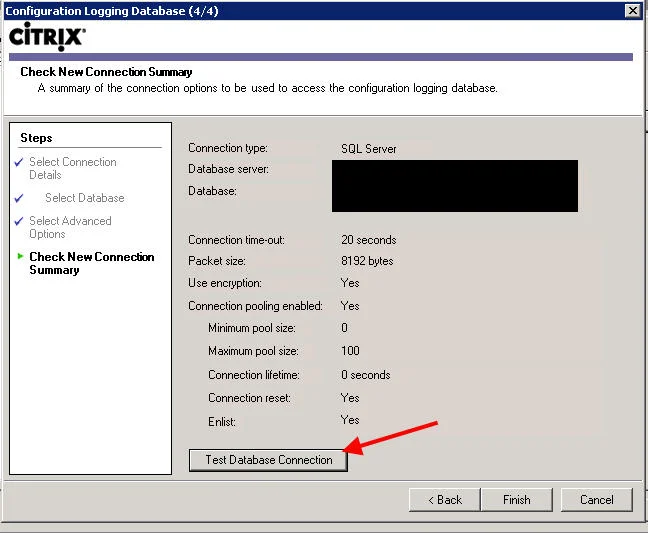
- Verify all your settings are correct and hit "Test Database Connection"
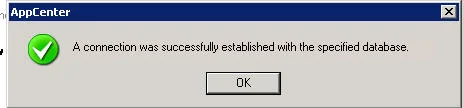
- You should get a confirmation like this. Hit Finish.
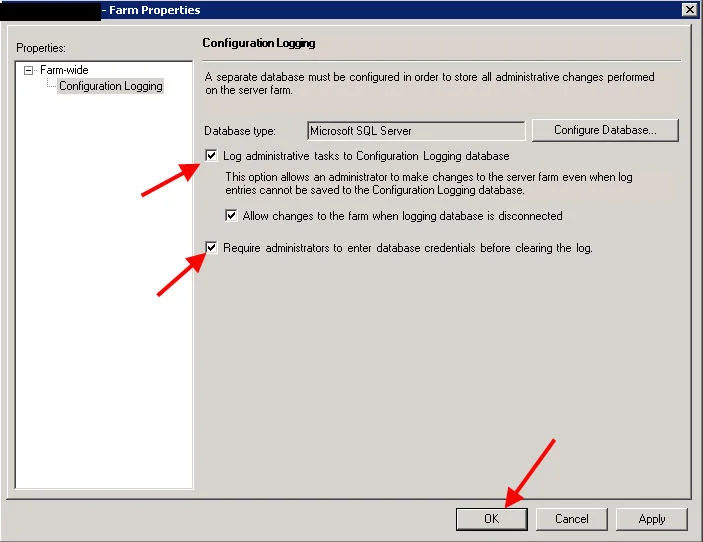
- Now you'll be returned to the configuration logging setup box. Check "Log administrative tasks to Configuration Logging datbase" and "Require administrators to enter database credentials before clearing the log". Hit Ok.
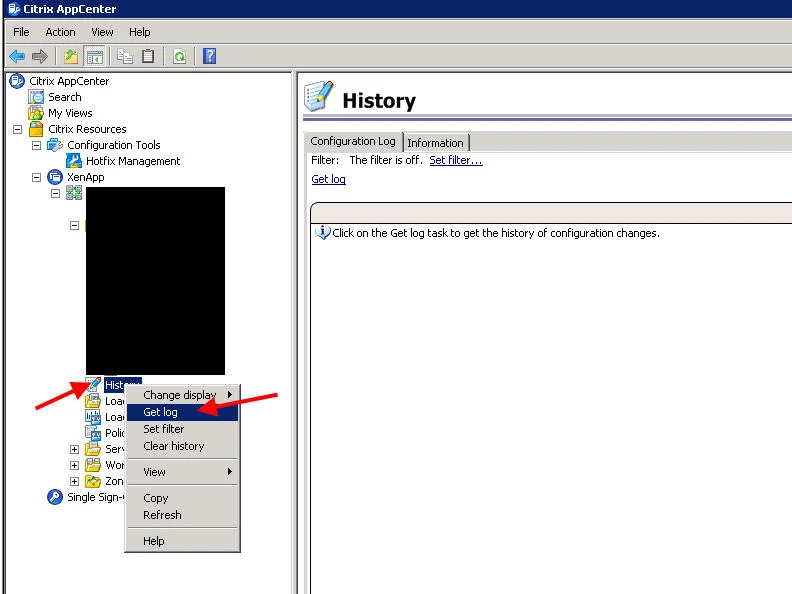
- Now right click History (which is called Logging in XenApp 7.5 Citrix Studio) and click Get log.
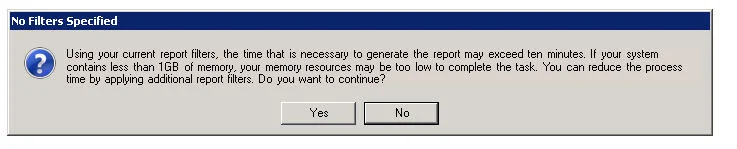
- It's going to give you a warning saying you don't have a filter applied, don't worry just hit Yes to continue.
-
You'll get a popup asking to enter your logging credentials again, the same credentials you used to setup the database. Type them in and hit OK.
-
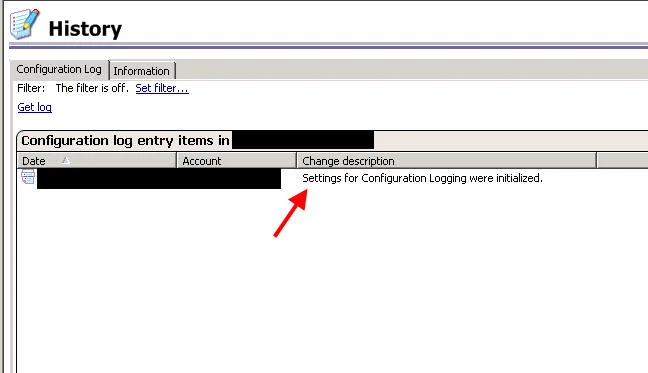
Voila, there's your first entry of you turning on configuration logging. From here on out any change a Citrix Admin makes will be logged.
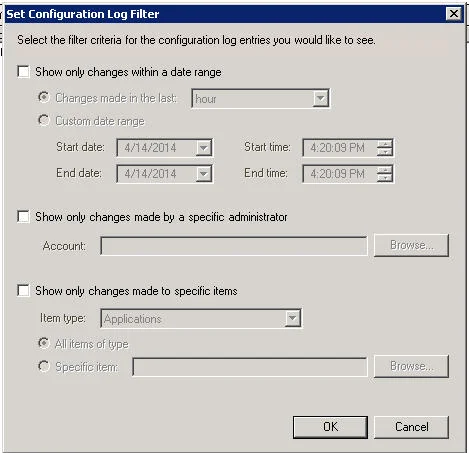
- You can set filters to return just the data you're looking for.
- This is great but what if you want to have a daily report emailed to you and other Citrix Admins at the end of the day with all the changes that happened on the Citrix farm? This is where Powershell comes in. You can get all this data pulled in via Powershell and emailed out very easily. I'm working on a script and will post it right here on my blog once it's done.

Jason Samuel
Product leader, advisor, and international speaker with 27 years in enterprise end-user computing, security, and cloud. Has deployed infrastructure at Fortune 500 scale across 38 countries. 1 of 3 people globally to hold Citrix CTP + VMware vExpert + VMware EUC Champion concurrently. 220 articles, 1,000+ reader discussions.
Previous Comments (5)


How to extend your on premises XenApp XenDesktop environment to Citrix Cloud XA XD Service and Microsoft Azure
There are a lot of misconceptions about what Citrix Cloud actually is. Here's how to extend your on-prem XenApp/XenDesktop to Citrix Cloud and Azure using Cloud Connectors.
citrix-xenappHow to publish content and use custom icons in XenApp XenDesktop 7.11 using PowerShell
XenApp/XenDesktop 7.11 lets you publish content (documents, URLs) with custom icons via PowerShell. Here are the exact cmdlets to deliver content shortcuts to your users.
citrix-xenappHow to setup Citrix Director Shadowing with Microsoft Remote Assistance using Group Policy
If you want help desk to shadow XenDesktop VMs from Director using Remote Assistance, you'll need Group Policy configured and Director 7.6.100. Here's the setup.