
How to fix pass-through authentication & the Microsoft Windows 2008 logon screen on XenApp 6.5/Web Interface 5.4 using Citrix Receiver
If your users are getting prompted for credentials or seeing the Windows 2008 logon screen on XenApp 6.5 / WI 5.4, SSO is broken. Fix it by correcting the Receiver ADM template and XML Trust.
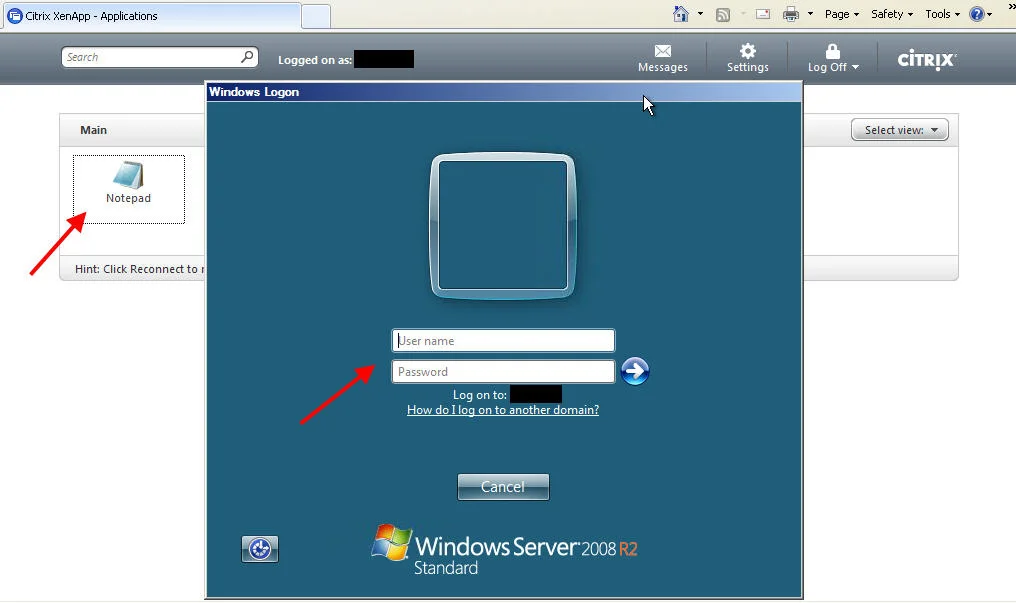
When you launch Internet Explorer and open your Citrix web interface page, you want it to pass through the user's credentials and see all the available apps. When the user clicks on an app, it should launch immediately with no further prompts. Plain and simple.
But this is not always the case unfortunately. Sometimes pass-through authentication breaks. Symptoms I have seen are:
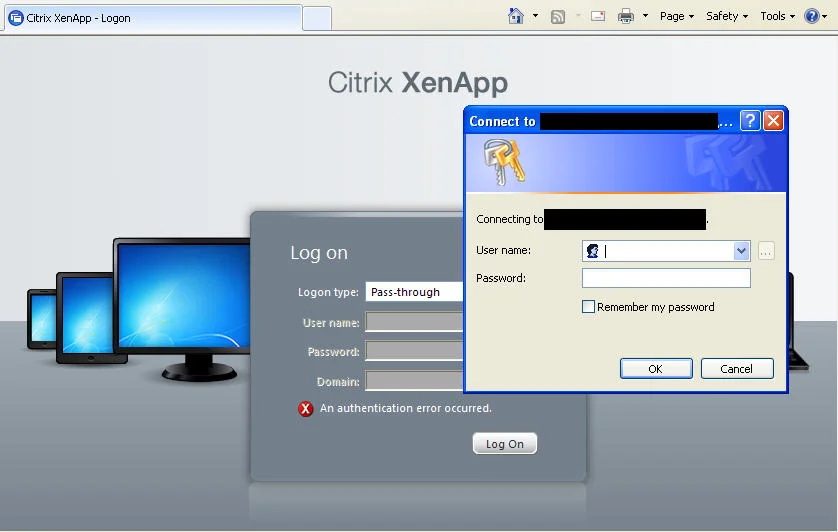
- You get prompted for credentials at the Web Interface logon (an authentication error occurred error message) like this:
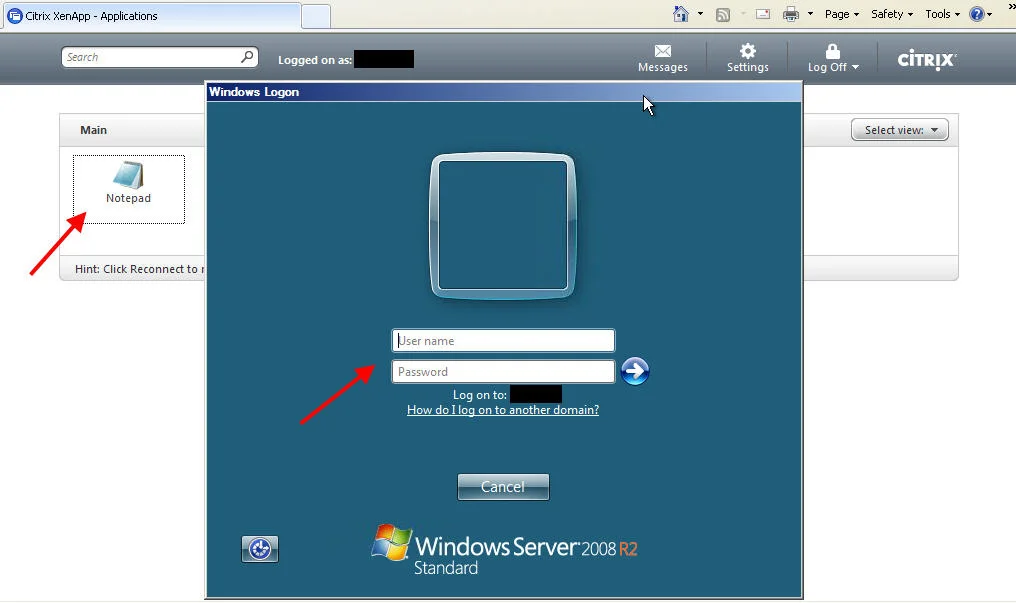
- Passthrough at the web interface works fine but when launching an app, you get a Windows 2008 R2 logon screen from the XenApp server like this:
- You get a combination of both issues above.
Don't worry, there are a number of things you need to check that can resolve these issues for you. One or more of these factors may be the cause of errors in your environment. Just run through the bullet points below and verify everything: 1. You need to be using Citrix Receiver Enterprise if possible and not just the plain Citrix Receiver. The latest Citrix Receiver is 3.1 but 3.0 behaves the same way. It comes with Online Plugin 13.1.0.89 enabled out of the box. You can go to the "Receiver for Windows 3.1 - Admins" download page here:
https://www.citrix.com/English/ss/downloads/details.asp?downloadId=2319945&productId=1689163
You will need to download the 55.1 MB zip file. Inside you will see both "CitrixReceiver.exe" and "CitrixReceiverEnterprise.exe". The one you want to install is the Enterprise version. This version will install with pass-through authentication support automatically for you as well as Single Sign On (SSO). You can always install and enable SSO with the standard Receiver using the "/includeSSON" and "ENABLE_SSON=Yes" command line switches and this actually will give you pass-through authentication features (more on this in bullet point 7 below). Receiver Enteprise will require administrator access to install on PCs unlike the standard/regular Citrix Receiver. The difference between the two versions is described here:
http://support.citrix.com/proddocs/topic/receiver-31-windows/ica-clients-deciding-v2.html
Note how Enterprise has "Single sign-on/pass-through authentication" but standard only has "Single sign-on"?
Now here's a big problem. When an end user tries to download the Receiver off the Citrix website, it will not show Enterprise:
http://www.citrix.com/receiver
Go ahead and choose Windows in the drop down. The next page will show the download for Receiver. It does not specify if it is Standard or Enterprise. If you download the executable, it is just CitrixReceiver.exe which is the Standard version you had downloaded above.
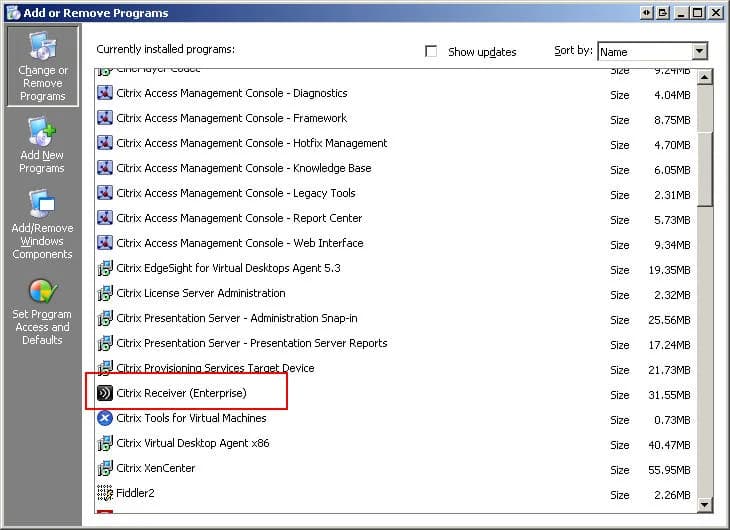
So if you are troubleshooting pass-through authentication, the first thing you want to make sure of is go to Add/Remove programs on the user's PC and verify it says "Citrix Receiver (Enterprise)" like below and not just "Citrix Receiver":
I'm guessing Citrix only offers the standard version to end users so they are not confused on which one to download. The problem is if you are in an environment where Receiver Enterprise is not deployed centrally or if users take it upon themselves to install the latest Receiver from Citrix's website (which does not require admin rights btw), they can cause a big mess and you are stuck troubleshooting it.
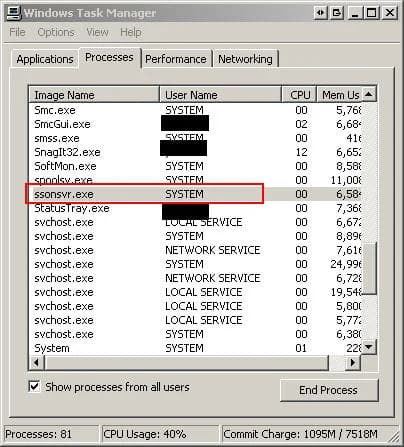
Another tip, you need to restart your PC for the pass-through authentication to work after you finish installing Receiver Enterprise 3.1. It will sometimes not start the Single Sign On process until you restart your PC. Or it will start it but it still not correctly passthrough credentials for whatever reason. So your best bet is to restart your PC to make sure everything is working correctly. Once you restart your PC, open Task Manager and verify "ssonsvr.exe" is running like below:
Here is another screenshot from Process Explorer which shows the dependency a bit better:

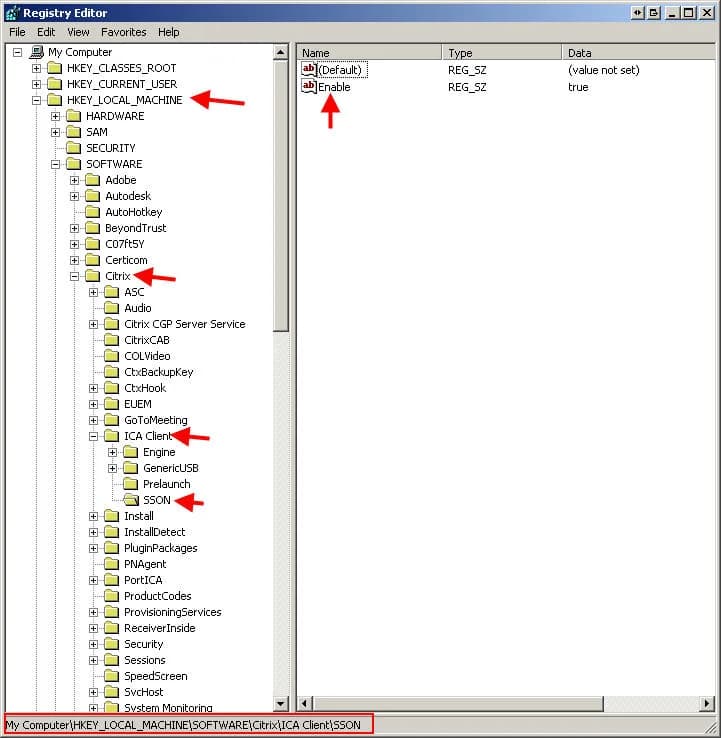
You can also go to the registry and under "HKEY_LOCAL_MACHINE\SOFTWARE\Citrix\ICA Client\SSON" it should have a string value called "Enable" with a value data of "True" like this. This means SSO was installed. This key will be there if you installed Enterprise or forced the SSO install using Standard. Here is a Windows XP example:
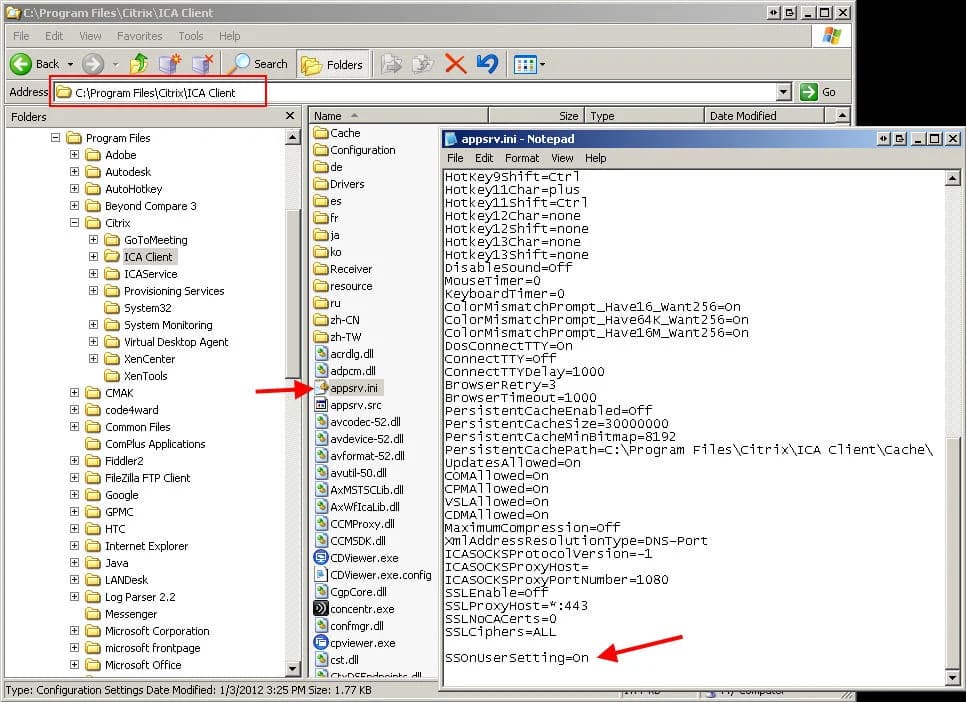
Another thing you can do, and I'm on an XP 32 bit box right now, is navigate to "C:\Program Files\Citrix\ICA Client" and open up appsrv.ini in Notepad. You should see "SSOnUserSetting=On" at the very bottom which means that single signon is enabled.
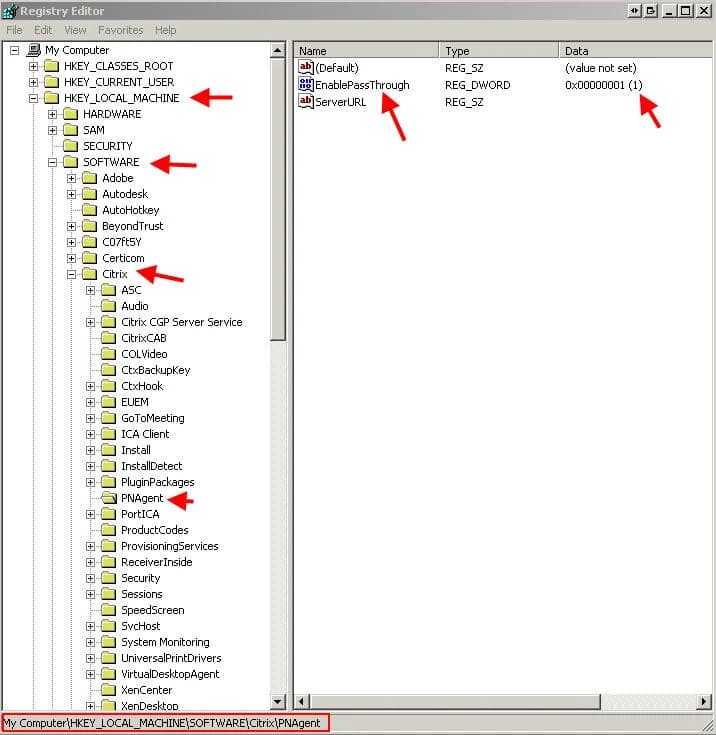
Another check to verify for Enterprise installation, go to "HKEY_LOCAL_MACHINE\SOFTWARE\Citrix\PNAgent" in the registry and look for the DWORD value "EnablePassThrough". It should have a value of "1" meaning it is enabled. Standard Receiver doesn't include the PNA plugin so you won't even have this key if you were using it.
2. You need to verify the Citrix Receiver group policy allowing pass-through authentication has been applied to the PC you are working on. If you are just working on a test machine, you can apply this policy to just that PC for testing purposes instead of through AD. Just open up gpedit.msc on the PC, right click on "Administrative Templates" and then click "Add/Remove Templates...". Click Add and choose the following file:
C:\Program Files\Citrix\ICA Client\Configuration\icaclient.adm
Once you have added it, navigate down to Computer Configuration > Administrative Templates > Citrix Components > Citrix Receiver > Authentication and you will see an option called "Local user name and password". Double click on it and set it to Enabled. You need to have "Enable pass-through authentication" and "Allow pass-through authentication for all ICA connections" enabled. So it will look like this:
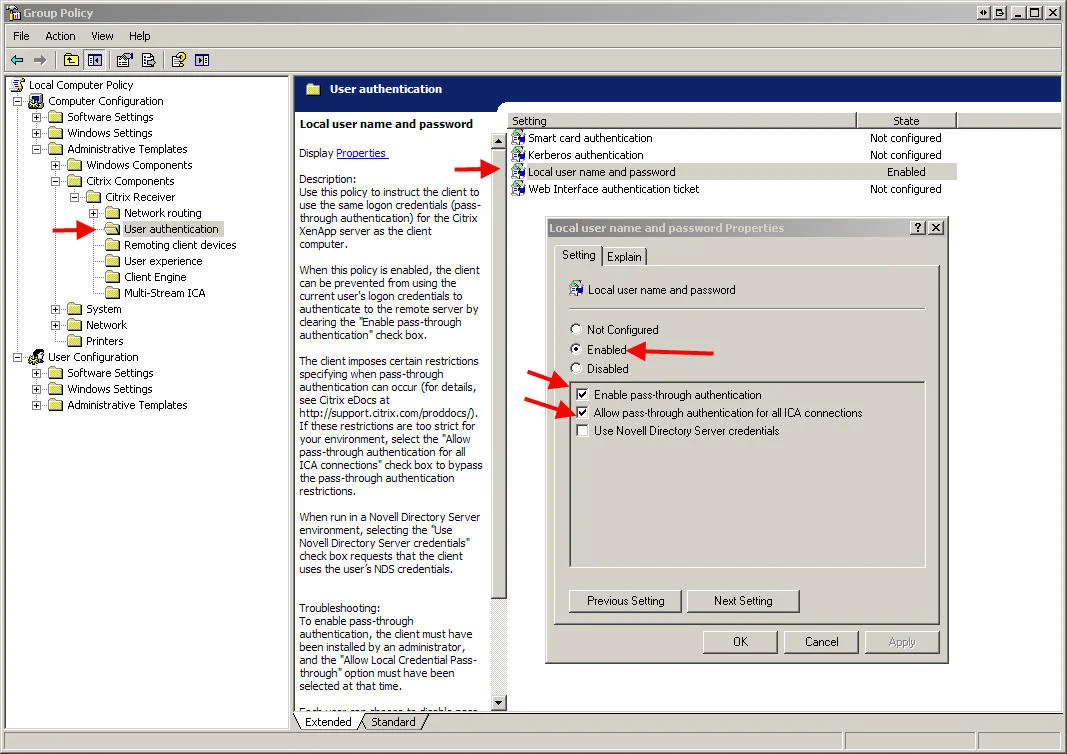
If you expand the User Configuration section, you will see the same settings under there as well. I usually have it set there as well but it is not necessary. In my testing, you can leave it enabled at the computer level and it will work. The changes should be instant from my testing but if they don't take, try doing a "gpupdate /force", restarting your browser, and/or rebooting your machine.
3. There is a known issue with XenApp 6.5 where pass-through authentication will not work. You need to apply Hotfix XA650W2K8R2X64001 to all your XenApp servers. You can get it here:
http://support.citrix.com/article/CTX130794
This will update your ccticket.dlls among other files that will fix the issue.
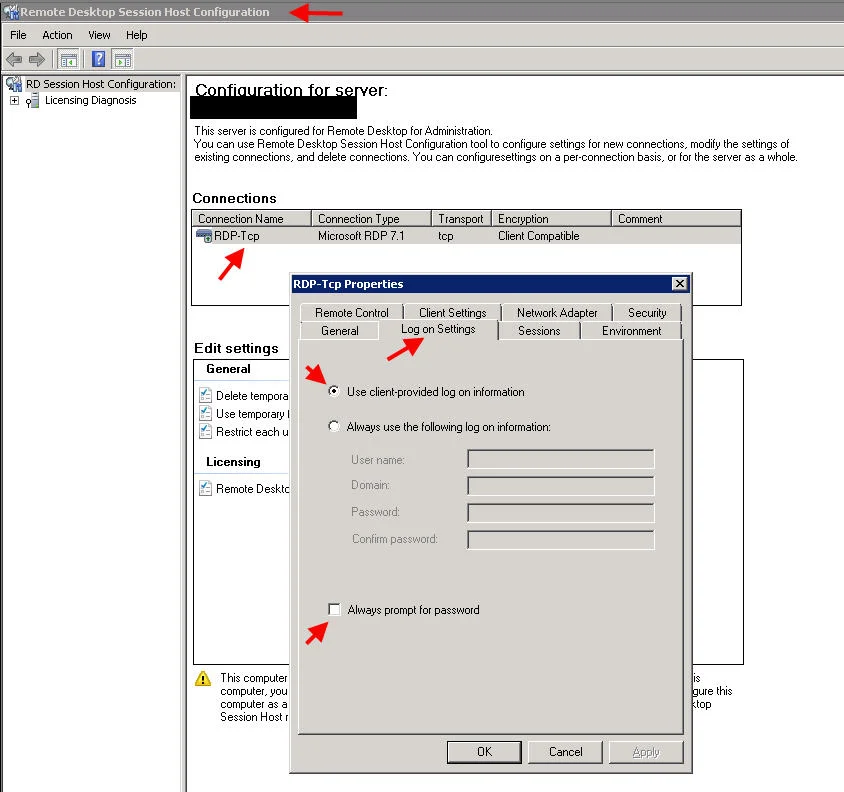
4. Verify on your XenApp servers that the RDP connection is set to not prompt for passwords. Under the Remote Desktop Session Host Configuration console, doubleclick on RDP-Tcp, then click the Log on Settings tab. Verify "Use client-provided log on information" is selected and "Always prompt for password" is NOT checked:
5. Verify in the Web Interface console that you have specified pass-through authentication for the XenApp site. Just open the Web Interface Management console, right click on your site, and click Authentication Methods. Pass-through should be checked here:
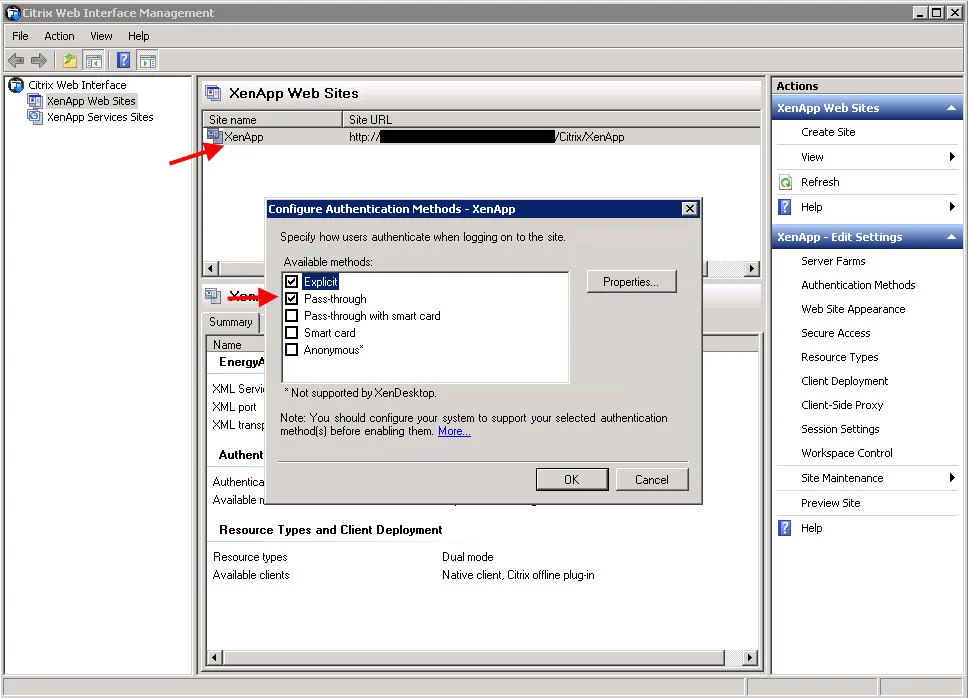
It should also be done on the XenApp Services site if you need it.
6. Pass-through authentication will not work in Firefox. I've added my web interface to the Trusted URIs config in FireFox but it won't work. NTLM Passthrough authentication works fine on the web interface, but it won't carry to the XenApp server when launching an app. You can add your WI to the list by typing this in the address bar in FireFox:
about:config
Then just type "NTLM" in the filter box. Add the URL (without the http:\\) in the "network.automatic-ntlm-auth.trusted-uris" box. If you do manage to somehow getting pass-through authentication to work in Firefox, please leave a comment below. I'm not a huge IE fan. :)
Quick note in IE, you do not need to add your WI URL to the Trusted Sites security zone for passthrough to work. Local Intranet is all you need from my experience. Sometimes you may get prompted at the web interface for credentials. Just make sure the site appears in Local Intranet and not Internet. I've seen issues where NTLM passthrough may not work in this scenario.
7. One final note, I did some additional testing using the Standard Receiver and command line installation. If you install Standard Receiver using command line with the following:
CitrixReceiver.exe /includeSSON ENABLE_SSON=Yes
You will see in Process Explorer or Task Manager that "ssonsvr.exe" is indeed running after the install. In my testing I was able to get it to actually pass-through but on certain XenApp 6.5 servers only. They had the pass-through hotfix I talk about below in bullet point 3 above applied. This was the only exception. And it only worked immediately after the Citrix Receiver install without rebooting the system. After rebooting the PC, it behaved like all other regular unpatched XenApp 6.5 and below farms. I would get the Server 2008 logon.
I then added the .adm template and configured it as described in bullet point 2 above and pass-through authentication worked fine with both patched and unpatched XenApp 6.5 servers. It even worked on XenApp 5 Feature Pack 3 farms with Web Interface 5.3 just fine.
If you check Process Explorer as you launch an app, the whole chain is there from the single sign on service to the connection manager down to the ICA client/Online Plugin:

So bottom line, you can get standard Receiver to work with passthrough but only if using these command line switches during install. I would just deploy Receiver Enterprise to begin with to avoid having issues down the road. It just seems to make more sense to me.

Jason Samuel
Product leader, advisor, and international speaker with 27+ years in enterprise end-user computing, security, and cloud. Has deployed infrastructure at Fortune 500 scale across 38 countries. 1 of 3 people globally to hold Citrix CTP + VMware vExpert + VMware EUC Champion concurrently. 200+ articles, 1,000+ reader discussions.
Previous Comments (28)


How to extend your on premises XenApp XenDesktop environment to Citrix Cloud XA XD Service and Microsoft Azure
There are a lot of misconceptions about what Citrix Cloud actually is. Here's how to extend your on-prem XenApp/XenDesktop to Citrix Cloud and Azure using Cloud Connectors.
citrix-xenappHow to publish content and use custom icons in XenApp XenDesktop 7.11 using PowerShell
XenApp/XenDesktop 7.11 lets you publish content (documents, URLs) with custom icons via PowerShell. Here are the exact cmdlets to deliver content shortcuts to your users.
citrix-xenappHow to setup Citrix Director Shadowing with Microsoft Remote Assistance using Group Policy
If you want help desk to shadow XenDesktop VMs from Director using Remote Assistance, you'll need Group Policy configured and Director 7.6.100. Here's the setup.